Talos Director is in Limited Availability. Limited Availability customers receive full production support and work directly with Sidero Labs engineering during onboarding. General availability is planned for January 2027, and the console is changing quickly until then, so details on these pages may differ from what you see.To request access, visit siderolabs.com/getdirector.
The Virtual Machines view
Navigate to Compute > Virtual Machines > All VMs (/vms) to see every VM across all clusters in one table.
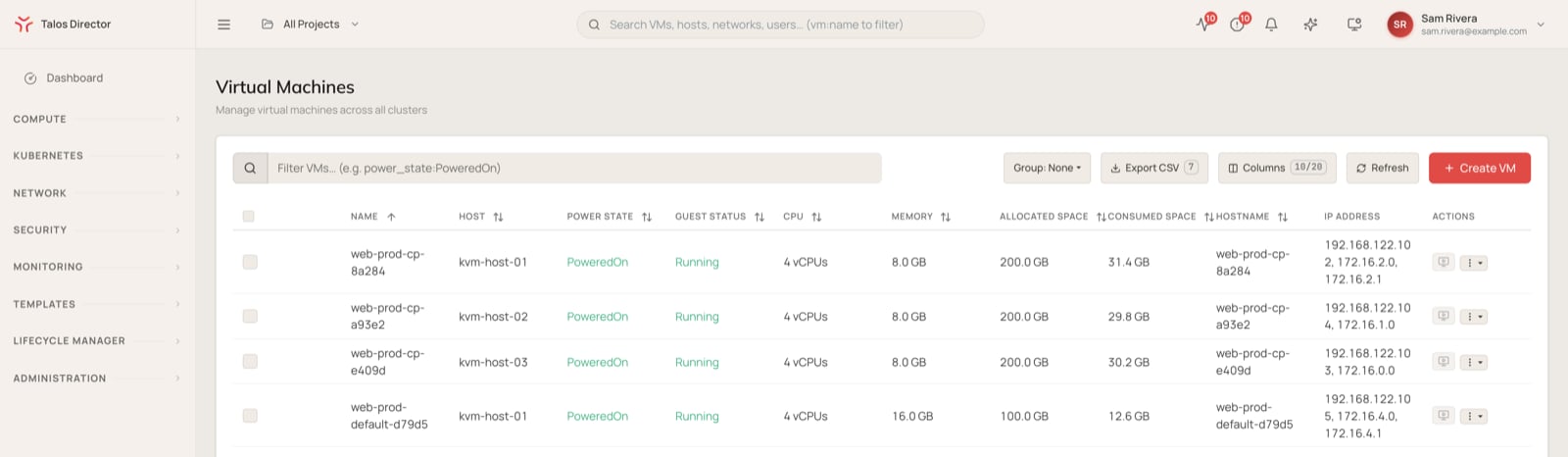
Columns
The table shows the following columns by default.
Select Columns to show more of the available columns.
Controls
- Filter VMs…: filter the table with free text or query-style expressions, for example
power_state:PoweredOn. - Group: group the table’s rows.
- Export CSV: download the current view.
- Columns: choose which columns are visible.
- Refresh: reload VM data on demand.
- Create VM: create a new virtual machine. See Create a virtual machine.
Row actions
The Actions menu on each row offers Power On, Shutdown (Graceful), Force Off, Reboot, Move to Folder, Clone VM, and View Details. Shutdown (Graceful) asks the guest operating system to shut down. Force Off cuts power immediately, the equivalent of pulling the plug, and can lose data the guest has not written to disk.Create a virtual machine
Select Create VM to open the Create Virtual Machine form. A VM Summary panel beside the form updates as you fill it in, and Equivalent CLI / API shows the same request in a form you can script.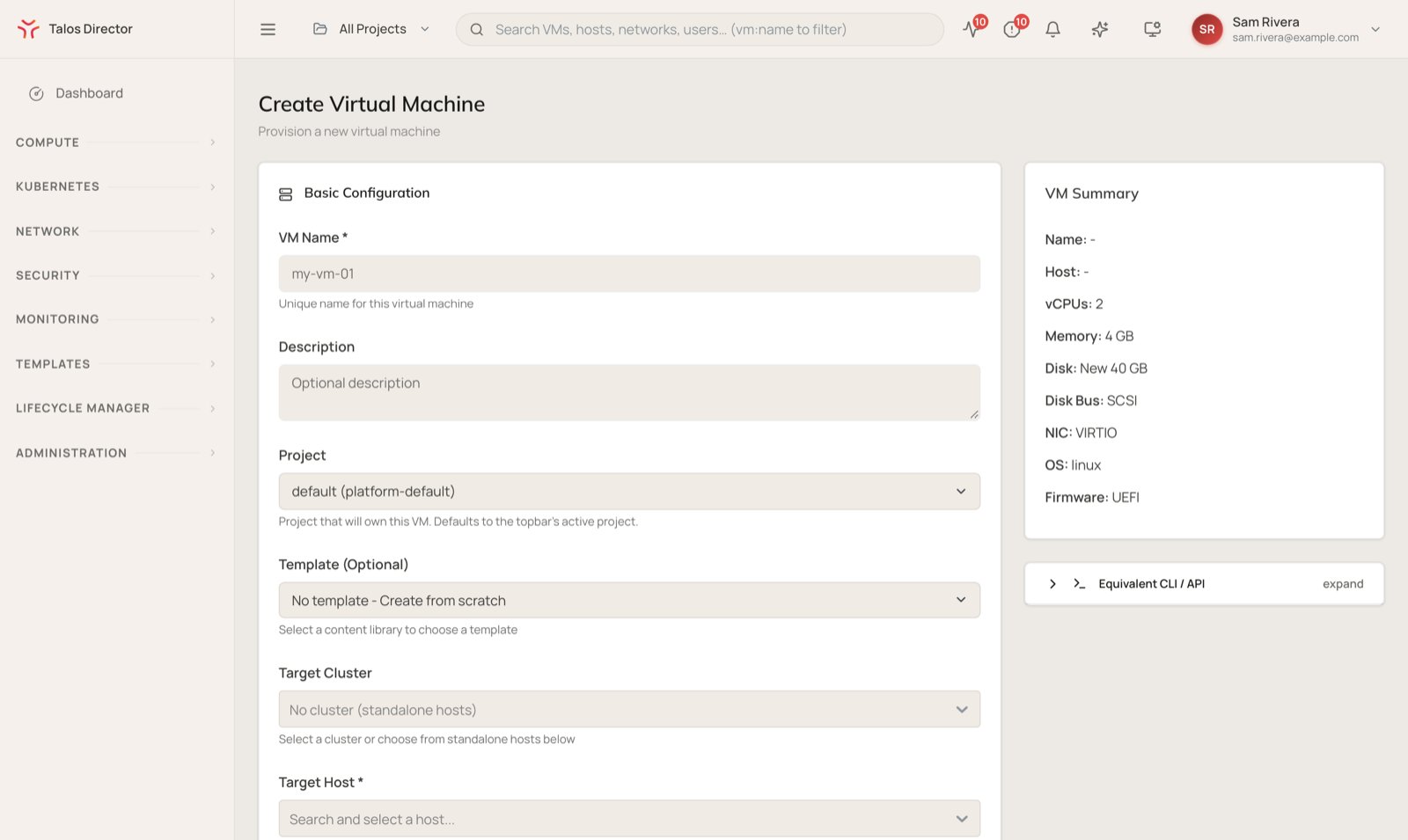
Basic configuration
CPU and memory
Pick a preset size, from Micro (1 vCPU, 1 GB) to 2XL (32 vCPU, 64 GB), or choose Custom and set vCPUs and Memory (GB) yourself. Advanced CPU Topology and Scheduling & NUMA let you set sockets, cores, threads, and NUMA placement when a workload needs them.Storage
Network interface
Advanced options
- Firmware: BIOS (Legacy) or UEFI, with Enable Secure Boot available for UEFI.
- Enable VNC Console: adds a graphical console. A serial console is always available.
- Advanced VM Parameters: lower-level hypervisor settings.
- Guest customization: off by default, so the VM boots the image unchanged. Turn it on to set the hostname, network, SSH keys, and more through cloud-init (Linux) or cloudbase-init (Windows).
The VM detail screen
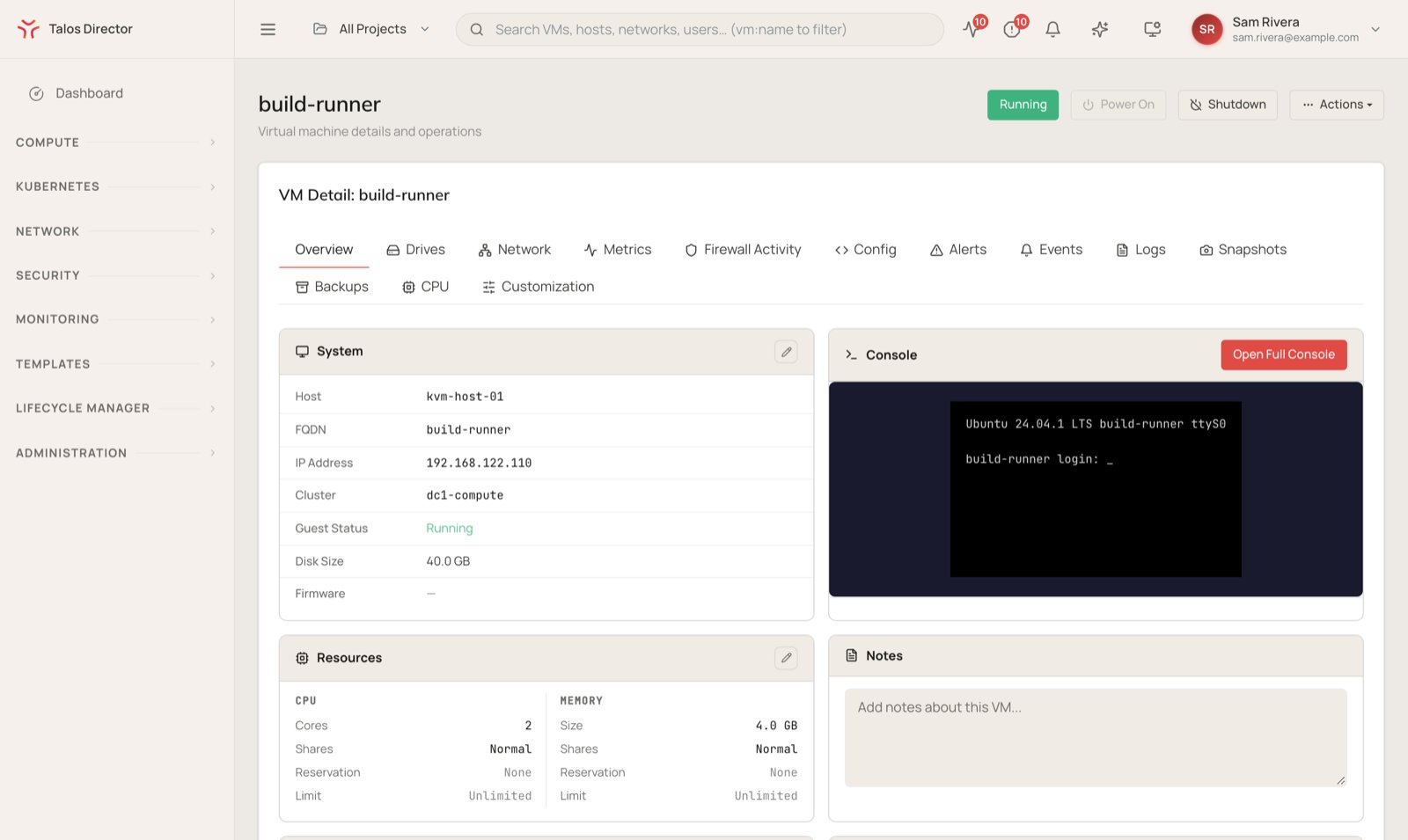
Click a VM name to open its detail screen. The header shows the VM’s power state, with Power On and Shutdown buttons and an Actions menu that covers the rest of the VM’s operations, including opening the console, editing settings, renaming, migrating the VM or its storage to another host or pool, mounting an ISO, creating a template, and cloning.