

Talos Director is in Limited Availability. Limited Availability customers receive full production support and work directly with Sidero Labs engineering during onboarding. General availability is planned for January 2027, and the console is changing quickly until then, so details on these pages may differ from what you see.To request access, visit siderolabs.com/getdirector.
The Hosts view
Navigate to Compute > Hosts > All Hosts to see every host in one table.Columns
The table shows the following columns.
Select Columns to show additional columns, such as Platform, OS Version, and BIOS Version, and to reorder the columns.
Controls
The controls above the table let you search, shape, and export the view:- Filter hosts…: filter the table with free text or query-style expressions, for example
status:connected. - Columns: choose which columns are visible and in what order.
- Export CSV: download the current view for reporting or offline analysis.
- Add Host: register and deploy a new hypervisor host. See Add a host.
Row actions
The Actions menu on each row offers the following:- Edit: opens the host detail screen. See The host detail screen.
- Move to Folder: moves the host to a different folder in the inventory.
- Enter Maintenance Mode: takes the host out of service. See Manage hosts.
Add a host
Adding a host has two stages. First you register the host in Talos Director, which creates its record in the inventory. Then you run a deployment script on the physical server, which installs Talos onto it and connects it to that record. Registering a host does not create any virtual machines or Kubernetes nodes. It establishes the host as a trusted, managed resource that workloads can later be placed on.Register the host
- Navigate to Compute > Hosts > All Hosts.
- Select + Add Host. The Add Host screen opens on the Host Configuration step.
- Under Host Information, complete the following fields:
- Hostname (FQDN): the server’s fully qualified domain name.
- IP Address: the server’s IP address.
- Cluster: the cluster the host joins, or Standalone (No Cluster).
- SSH Port: the server’s SSH port.
- Under Agent & Security, choose the following options:
- Enable Monitoring Agent: installs an agent that collects metrics, monitors events, and enables automatic High Availability.
- Generate TLS Certificate: generates a TLS certificate for mutual TLS (mTLS) between the host’s agent and Talos Director.
- Select Register Host. Talos Director validates the fields, adds the host to the inventory, and moves to the Deployment step.
Deploy the host
- On the Deployment step, copy the Deployment Script.
- Start the physical server that will become the host in a supported deployment or live Linux environment. The server must be able to reach Talos Director over the network.
-
Run the script on that server, not on the Talos Director server. You can run it from any of the following:
- A directly connected keyboard and monitor.
- The server’s remote-management console, such as iDRAC, iLO, or IPMI.
- A remote shell, if the live environment provides one.
Connected. - To change the host’s settings afterward, open the Actions menu on its row in All Hosts and select Edit.
Manage hosts
To act on one or more hosts at once, select their check boxes in the Hosts view. A bar appears above the table showing how many hosts are selected and how many VMs are running on them, with the following actions: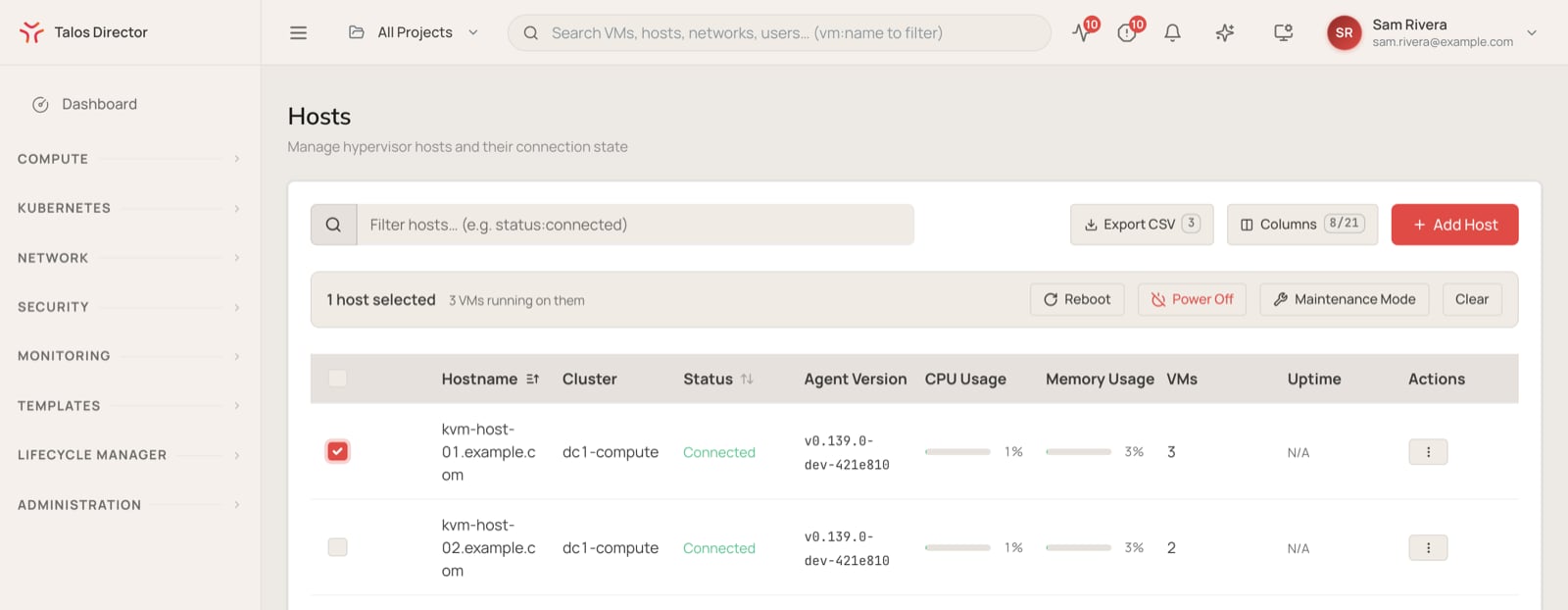
- Reboot: reboots the selected hosts.
- Power Off: powers down the selected hosts.
- Maintenance Mode: puts the selected hosts into maintenance mode. The dialog that opens lets you live-migrate the hosts’ VMs to other hosts in the cluster before maintenance mode begins.
- Clear: clears the selection.
The host detail screen
Click a hostname to open its detail screen. Tabs separate each aspect of the host.Overview
High-level information about the host, including CPU and memory usage and system information.Virtual Machines
The virtual machines on the host, with each VM’s power state, CPU count, and total capacity. From the Actions column you can power a VM on, shut it down, reboot it, or open its console.Performance
Performance metrics for the host over a selectable time range.Profiles
The configuration profile applied to the host. If no profile is shown, the host inherits its cluster’s configuration profile. Select Manage to open the Config Profiles page, where you can choose a cluster or host profile.Hardware
The host’s hardware: physical and virtual disks, hardware and disk health, and physical network interfaces.Network
The host’s network configuration. Select Columns to show, reorder, or resize the columns.Storage
The folders and files stored on the host. Use the Actions column to rename, copy, move, or delete them.Updates
The history of system updates run on the host. Select Run Update to update this host. To upgrade every host in a cluster without taking workloads down, use a rolling upgrade from the cluster’s Updates tab instead. See Clusters.Services
This tab has two sections:- Container Status lists the platform services running on the host, with each service’s state, the reason for that state, and its restart count. Select Logs to view a service’s logs.
- Host-level Overrides lists the configuration overrides set on this host, whether each is active, and where it came from. Select Preview to view an override’s details.
Alerts
The host’s alert history. Each alert shows its status (for example,Resolved), its severity (for example, Warning or Critical), and a message with more detail. Search alerts, filter them by status or severity, choose columns with Columns, and download them with Export CSV.