> ## Documentation Index
> Fetch the complete documentation index at: https://docs.siderolabs.com/llms.txt
> Use this file to discover all available pages before exploring further.

# Proxmox

> Creating Talos Kubernetes cluster using Proxmox.

export const release_v1_13 = 'v1.13.1';

export const VersionWarningBanner = () => {
  const latestVersion = "v1.13";
  const [latestUrl, setLatestUrl] = useState(null);
  const [currentVersion, setCurrentVersion] = useState(null);
  const [isBeta, setIsBeta] = useState(false);
  const parseVersion = v => v.replace("v", "").split(".").map(Number);
  const isGreaterVersion = (a, b) => {
    const [aMajor, aMinor] = parseVersion(a);
    const [bMajor, bMinor] = parseVersion(b);
    if (aMajor > bMajor) return true;
    if (aMajor === bMajor && aMinor > bMinor) return true;
    return false;
  };
  useEffect(() => {
    if (typeof window === "undefined") return;
    const {pathname, hash, search} = window.location;
    const match = pathname.match(/\/talos\/(v\d+\.\d+)\//);
    if (!match) return;
    const detectedVersion = match[1];
    if (detectedVersion === latestVersion) return;
    setCurrentVersion(detectedVersion);
    if (isGreaterVersion(detectedVersion, latestVersion)) {
      setIsBeta(true);
    }
    const newPath = pathname.replace(`/talos/${detectedVersion}/`, `/talos/${latestVersion}/`);
    setLatestUrl(`${newPath}${search}${hash}`);
  }, []);
  if (!latestUrl || !currentVersion) return null;
  return <div className="not-prose sticky top-6 z-50 my-6">
      <div className="border border-yellow-500/30 bg-yellow-500/10 px-4 py-3 rounded-xl">
        <div className="text-sm">
          {isBeta ? <>
              ⚠️ You are viewing a <strong>beta version</strong> of Talos ({currentVersion}).
              This version may be unstable.
              <a href={latestUrl} className="ml-2 underline text-yellow-400 hover:text-yellow-300 font-medium">
                View latest stable version {latestVersion} →
              </a>
            </> : <>
              ⚠️ You are viewing an older version of Talos ({currentVersion}).
              <a href={latestUrl} className="ml-2 underline text-yellow-400 hover:text-yellow-300 font-medium">
                View the latest version {latestVersion} →
              </a>
            </>}
        </div>
      </div>
    </div>;
};

<VersionWarningBanner />

In this guide we will create a Kubernetes cluster using Proxmox.

## Video walkthrough

To see a live demo of this writeup, visit Youtube here:

<iframe width="560" height="315" src="https://www.youtube.com/embed/MyxigW4_QFM" frameborder="0" allow="accelerometer; autoplay; clipboard-write; encrypted-media; gyroscope; picture-in-picture" allowfullscreen />

## Installation

### How to get Proxmox

It is assumed that you have already installed Proxmox onto the server you wish to create Talos VMs on.
Visit the [Proxmox](https://www.proxmox.com/en/downloads) downloads page if necessary.

### Install talosctl

You can download `talosctl` on MacOS and Linux via:

```bash theme={null}
brew install siderolabs/tap/talosctl
```

For manual installation and other platforms please see the [talosctl installation guide](../../getting-started/talosctl).

### Download ISO image

In order to install Talos in Proxmox, you will need the ISO image from [Image Factory](https://www.talos.dev/latest/talos-guides/install/boot-assets/#image-factory).

```bash theme={null}
mkdir -p _out/
curl https://factory.talos.dev/image/376567988ad370138ad8b2698212367b8edcb69b5fd68c80be1f2ec7d603b4ba/<version>/metal-<arch>.iso -L -o _out/metal-<arch>.iso
```

For example version {release } for `linux` platform:

<CodeBlock lang="sh">
  {`
    mkdir -p _out/
    curl https://factory.talos.dev/image/376567988ad370138ad8b2698212367b8edcb69b5fd68c80be1f2ec7d603b4ba/${release_v1_13}/metal-amd64.iso -L -o _out/metal-amd64.iso
    `}
</CodeBlock>

### QEMU guest agent support (iso)

* If you need the QEMU guest agent so you can do guest VM shutdowns of your Talos VMs, then you will need a custom ISO
* To get this, navigate to [https://factory.talos.dev/](https://factory.talos.dev/)
* Scroll down and select your Talos version ( {release_v1_13} for example)
* Then tick the box for `siderolabs/qemu-guest-agent` and submit
* This will provide you with a link to the bare metal ISO
* The lines we're interested in are as follows

<CodeBlock lang="sh">
  {`
    Metal ISO

    amd64 ISO
      https://factory.talos.dev/image/ce4c980550dd2ab1b17bbf2b08801c7eb59418eafe8f279833297925d67c7515/${release_v1_13}/metal-amd64.iso
    arm64 ISO
      https://factory.talos.dev/image/ce4c980550dd2ab1b17bbf2b08801c7eb59418eafe8f279833297925d67c7515/${release_v1_13}/metal-arm64.iso

    Installer Image

    For the initial Talos install or upgrade use the following installer image:
    factory.talos.dev/installer/ce4c980550dd2ab1b17bbf2b08801c7eb59418eafe8f279833297925d67c7515:{release_v1_13}
    `}
</CodeBlock>

* Download the above ISO (this will most likely be `amd64` for you)
* Take note of the `factory.talos.dev/installer` URL as you'll need it later

## Upload ISO

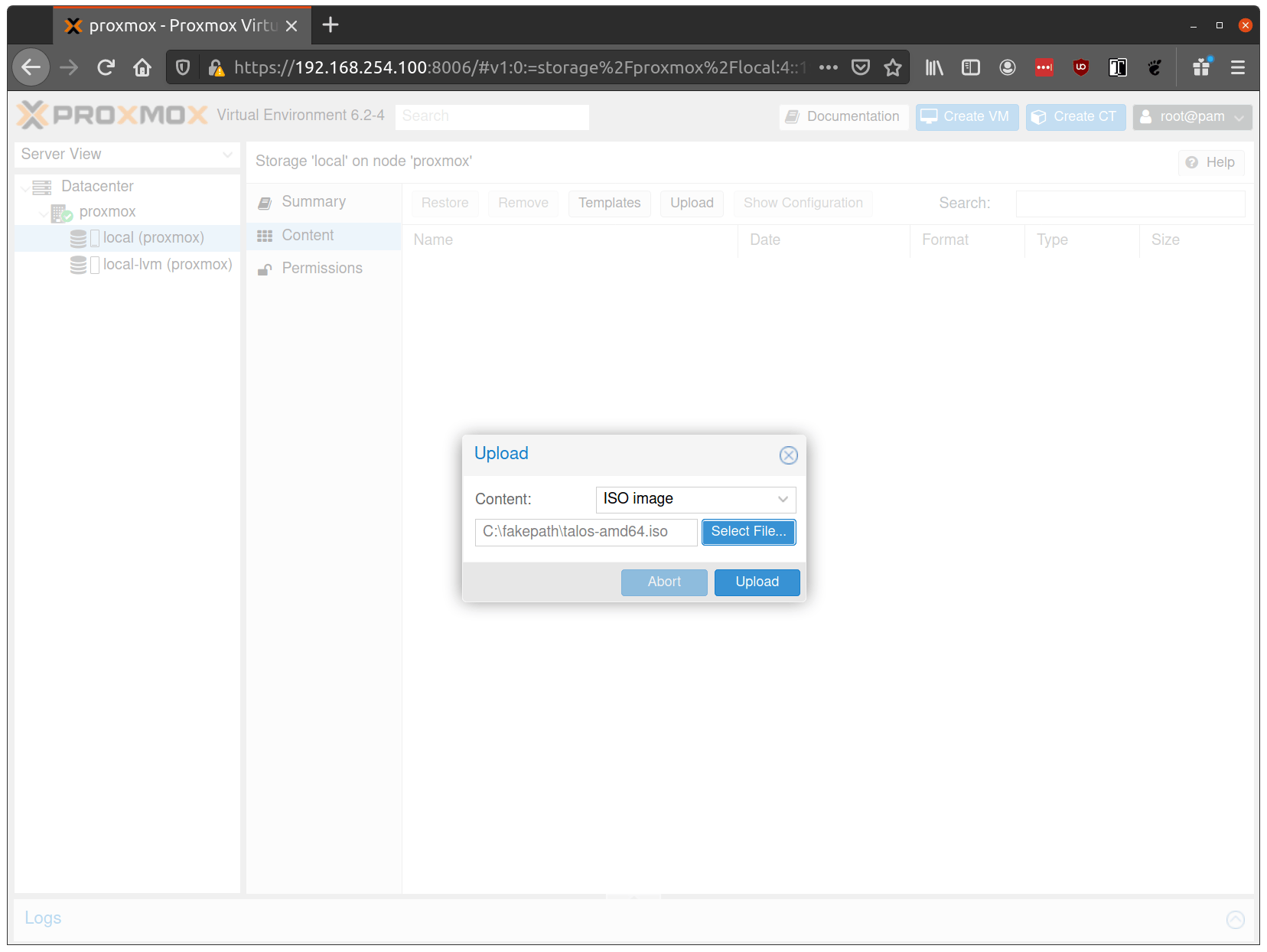
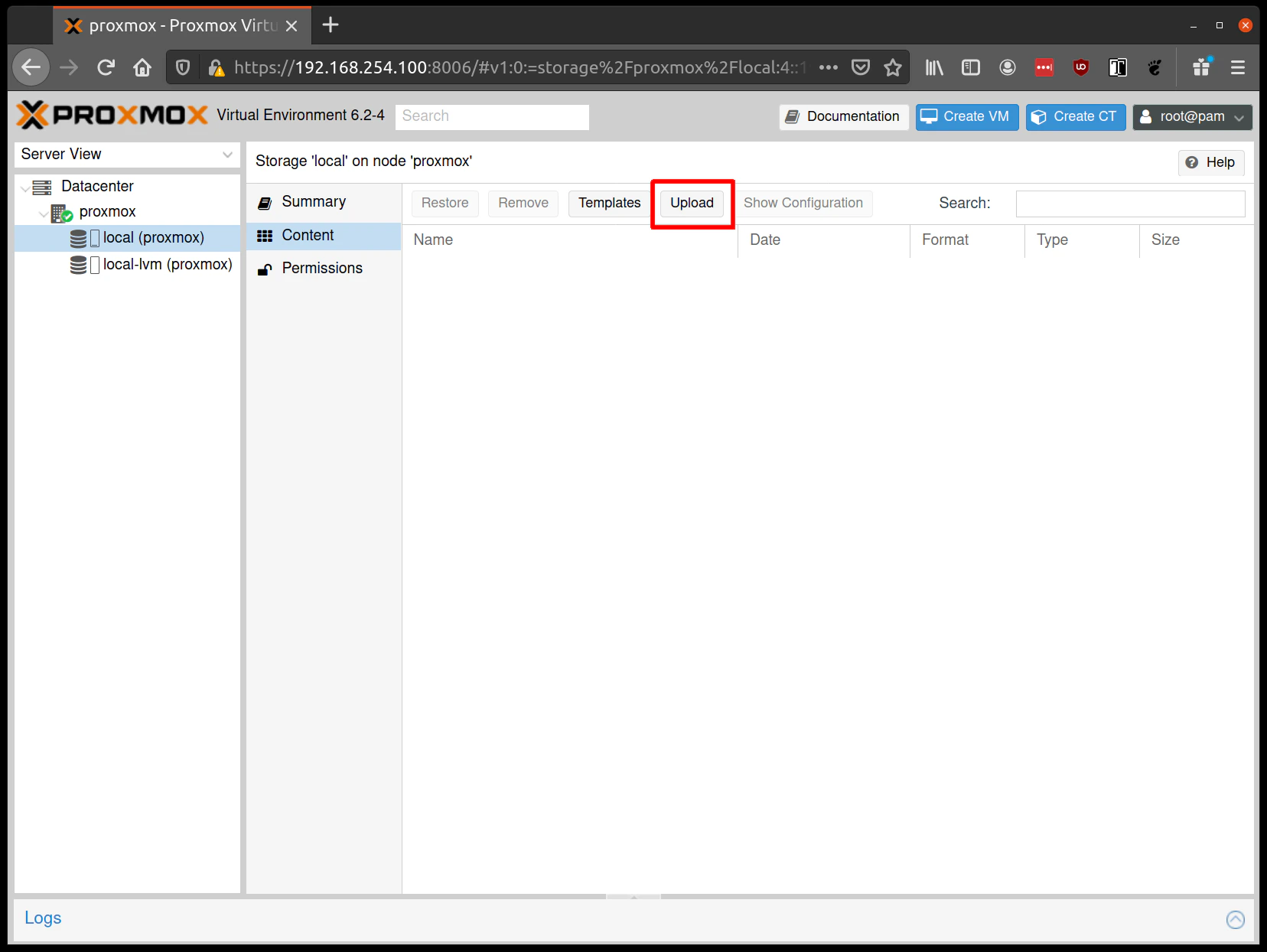
From the Proxmox UI, select the "local" storage and enter the "Content" section.
Click the "Upload" button:

<img src="https://mintcdn.com/siderolabs-fe86397c/hVMyOt-W9fmKR5ik/talos/v1.13/platform-specific-installations/virtualized-platforms/images/proxmox-click-upload.png?fit=max&auto=format&n=hVMyOt-W9fmKR5ik&q=85&s=26e0b7fa4bb3b74b005bd530e6193203" width="500px" data-path="talos/v1.13/platform-specific-installations/virtualized-platforms/images/proxmox-click-upload.png" />

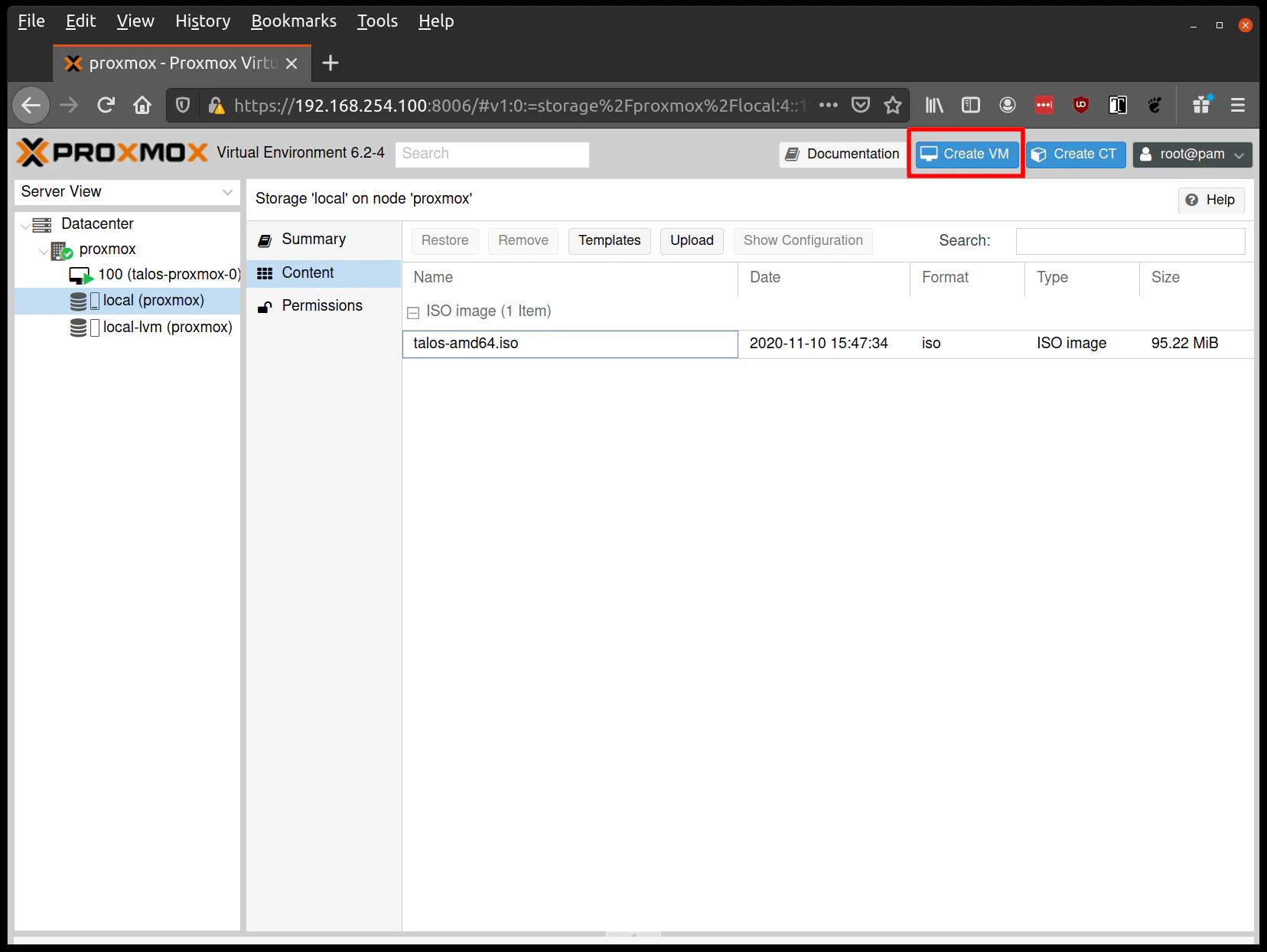
Select the ISO you downloaded previously, then hit "Upload"

<img src="https://mintcdn.com/siderolabs-fe86397c/hVMyOt-W9fmKR5ik/talos/v1.13/platform-specific-installations/virtualized-platforms/images/proxmox-create-vm.png?fit=max&auto=format&n=hVMyOt-W9fmKR5ik&q=85&s=6bea77c84dce0678cdb06367f934a53a" width="500px" data-path="talos/v1.13/platform-specific-installations/virtualized-platforms/images/proxmox-create-vm.png" />

## Create VMs

Before starting, familiarise yourself with the
[system requirements](../../getting-started/system-requirements) for Talos and assign VM
resources accordingly.

### Recommended baseline VM configuration

Use the following baseline settings for Proxmox VMs running Talos:

| Setting             | Recommended Value                               | Notes                                                                                                                           |
| ------------------- | ----------------------------------------------- | ------------------------------------------------------------------------------------------------------------------------------- |
| **BIOS**            | `ovmf` (UEFI)                                   | Modern firmware, Secure Boot support, better hardware compatibility                                                             |
| **Machine**         | `q35`                                           | Modern PCIe-based machine type with better device support                                                                       |
| **CPU Type**        | `host`                                          | Enables advanced instruction sets (AVX-512, etc.), best performance. Alternative: `kvm64` with feature flags for Proxmox \< 8.0 |
| **CPU Cores**       | 2+ (control plane), 4+ (workers)                | Minimum 2 cores required                                                                                                        |
| **Memory**          | 4GB+ (control plane), 8GB+ (workers)            | Minimum 2GB required                                                                                                            |
| **Disk Controller** | **VirtIO SCSI** (NOT "VirtIO SCSI Single")      | Single controller can cause bootstrap hangs (#11173)                                                                            |
| **Disk Format**     | Raw (performance) or QCOW2 (features/snapshots) | Raw preferred for performance                                                                                                   |
| **Disk Cache**      | Write Through (safe default)                    | Or None for clustered environments                                                                                              |
| **Network Model**   | `virtio`                                        | Paravirtualized driver, best performance (up to 10 Gbit)                                                                        |
| **EFI Disk**        | 4MB (for OVMF)                                  | Required for UEFI firmware, stores Secure Boot keys                                                                             |
| **Ballooning**      | Disabled                                        | Talos doesn't support memory hotplug                                                                                            |
| **RNG Device**      | VirtIO RNG (optional)                           | Better entropy for security                                                                                                     |

> **Important**: When configuring the disk controller, use **VirtIO SCSI** (not "VirtIO SCSI Single").
> Using "VirtIO SCSI Single" can cause bootstrap to hang or prevent disk discovery.
> See [issue #11173](https://github.com/siderolabs/talos/issues/11173) for details.

Create a new VM by clicking the "Create VM" button in the Proxmox UI:

<img src="https://mintcdn.com/siderolabs-fe86397c/hVMyOt-W9fmKR5ik/talos/v1.13/platform-specific-installations/virtualized-platforms/images/proxmox-create-vm.png?fit=max&auto=format&n=hVMyOt-W9fmKR5ik&q=85&s=6bea77c84dce0678cdb06367f934a53a" width="500px" data-path="talos/v1.13/platform-specific-installations/virtualized-platforms/images/proxmox-create-vm.png" />

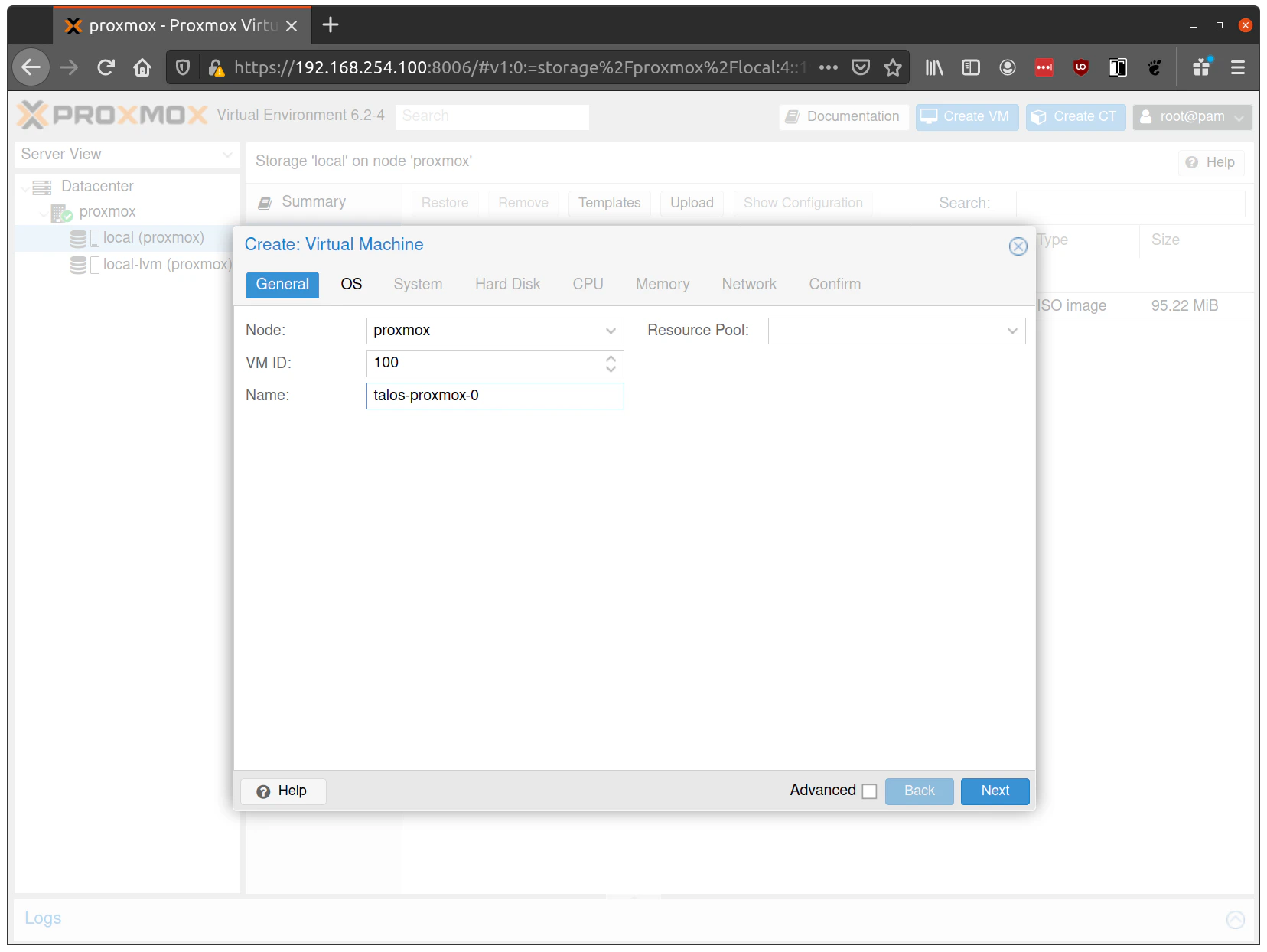
Fill out a name for the new VM:

<img src="https://mintcdn.com/siderolabs-fe86397c/hVMyOt-W9fmKR5ik/talos/v1.13/platform-specific-installations/virtualized-platforms/images/proxmox-edit-vm-name.png?fit=max&auto=format&n=hVMyOt-W9fmKR5ik&q=85&s=b022671c7e769a0f5655498ddc6ad056" width="500px" data-path="talos/v1.13/platform-specific-installations/virtualized-platforms/images/proxmox-edit-vm-name.png" />

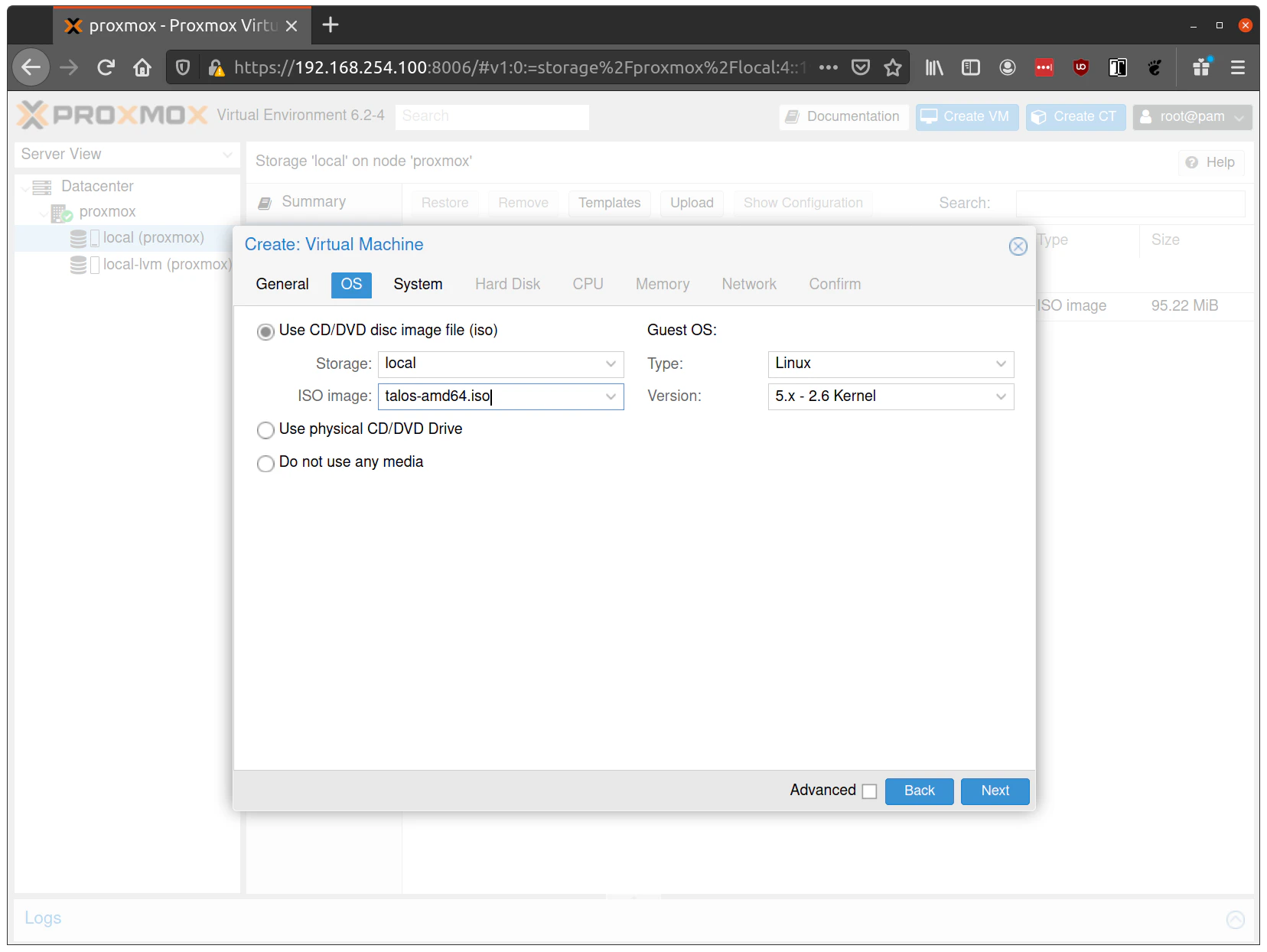
In the OS tab, select the ISO we uploaded earlier:

<img src="https://mintcdn.com/siderolabs-fe86397c/hVMyOt-W9fmKR5ik/talos/v1.13/platform-specific-installations/virtualized-platforms/images/proxmox-edit-os.png?fit=max&auto=format&n=hVMyOt-W9fmKR5ik&q=85&s=44f7314f76ec0870e9d0aac5e06dcb5e" width="500px" data-path="talos/v1.13/platform-specific-installations/virtualized-platforms/images/proxmox-edit-os.png" />

In the "System" tab:

* Set **BIOS** to `ovmf` (UEFI) for modern firmware and Secure Boot support
* Set **Machine** to `q35` for modern PCIe-based machine type
* Add **EFI Disk** (4MB) for persistent UEFI settings and Secure Boot key storage

In the "Hard Disk" tab:

* Set **Bus/Device** to `VirtIO SCSI` (NOT "VirtIO SCSI Single")
* Set **Storage** to your main storage pool
* Set **Format** to `Raw` (better performance) or `QCOW2` (features/snapshots)
* Set **Size** based on your workload requirements (adjust based on CSI and application needs)
* Set **Cache** to `Write Through` (safe default) or `None` for clustered environments
* Enable **Discard** (TRIM support) if using SSD storage
* Enable **SSD emulation** if using SSD storage

> **Important**: When configuring the disk controller, use **VirtIO SCSI** (not "VirtIO SCSI Single").
> Using "VirtIO SCSI Single" can cause bootstrap to hang or prevent disk discovery.
> See [issue #11173](https://github.com/siderolabs/talos/issues/11173) for details.

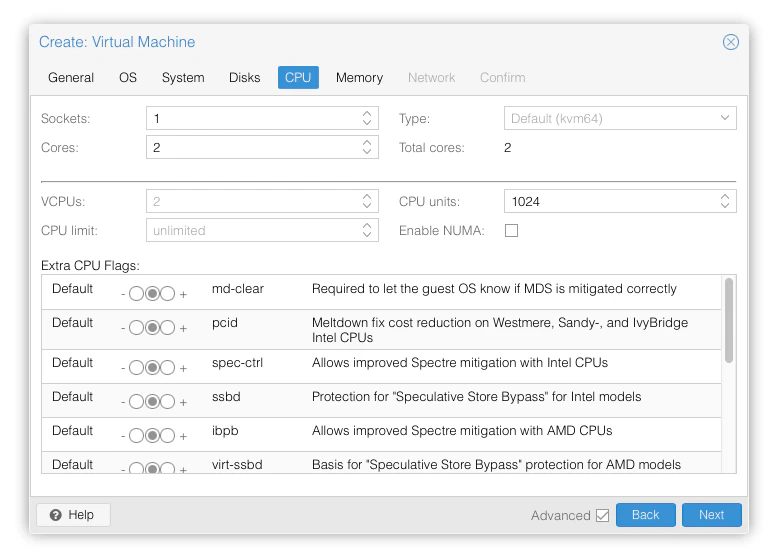
In the "CPU" section:

* Set **Cores** to 2+ for control planes, 4+ for workers
* Set **Sockets** to 1 (keep simple)
* Set **Type** to `host` (best performance, enables advanced instruction sets)
  * **Alternative for Proxmox \< 8.0**: Use `kvm64` with feature flags by adding to `/etc/pve/qemu-server/<vmid>.conf`:
    ```text theme={null}
    args: -cpu kvm64,+cx16,+lahf_lm,+popcnt,+sse3,+ssse3,+sse4.1,+sse4.2
    ```
  * **Note**: `host` CPU type prevents live VM migration but provides best performance

<img src="https://mintcdn.com/siderolabs-fe86397c/hVMyOt-W9fmKR5ik/talos/v1.13/platform-specific-installations/virtualized-platforms/images/proxmox-edit-cpu.png?fit=max&auto=format&n=hVMyOt-W9fmKR5ik&q=85&s=736ae4ee3e1c17c82d9fcbbce890087d" width="500px" data-path="talos/v1.13/platform-specific-installations/virtualized-platforms/images/proxmox-edit-cpu.png" />

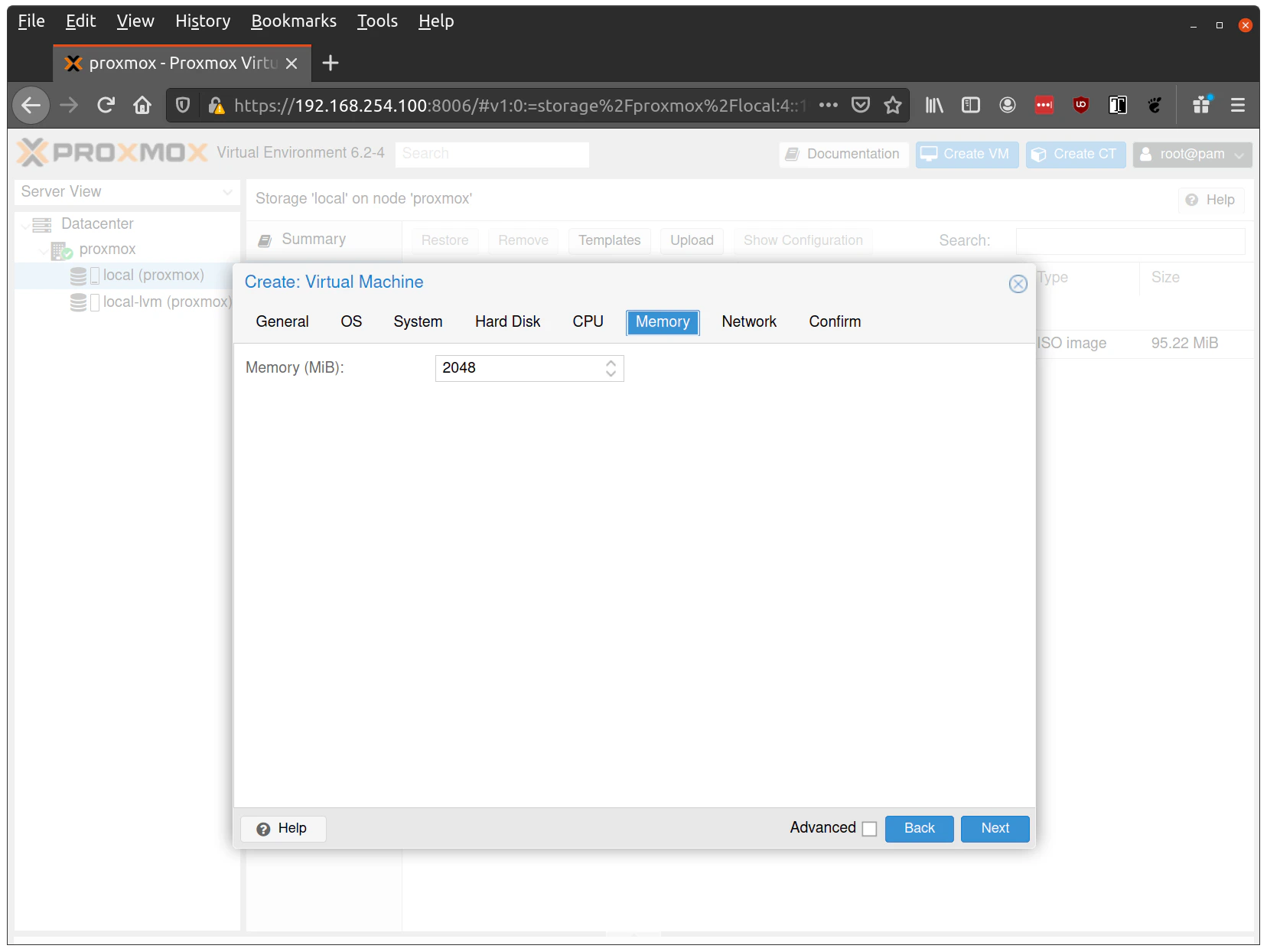
In the "Memory" section:

* Set **Memory** to 4GB+ for control planes, 8GB+ for workers (minimum 2GB required)
* **Disable Ballooning** (can cause issues with Talos memory detection)

<img src="https://mintcdn.com/siderolabs-fe86397c/hVMyOt-W9fmKR5ik/talos/v1.13/platform-specific-installations/virtualized-platforms/images/proxmox-edit-ram.png?fit=max&auto=format&n=hVMyOt-W9fmKR5ik&q=85&s=389a45d2e83819c7169f54c3d0678cfd" width="500px" data-path="talos/v1.13/platform-specific-installations/virtualized-platforms/images/proxmox-edit-ram.png" />

In the "Network" section:

* Set **Model** to `virtio` (paravirtualized driver, best performance)
* Set **Bridge** to your network bridge (e.g., `vmbr0`)
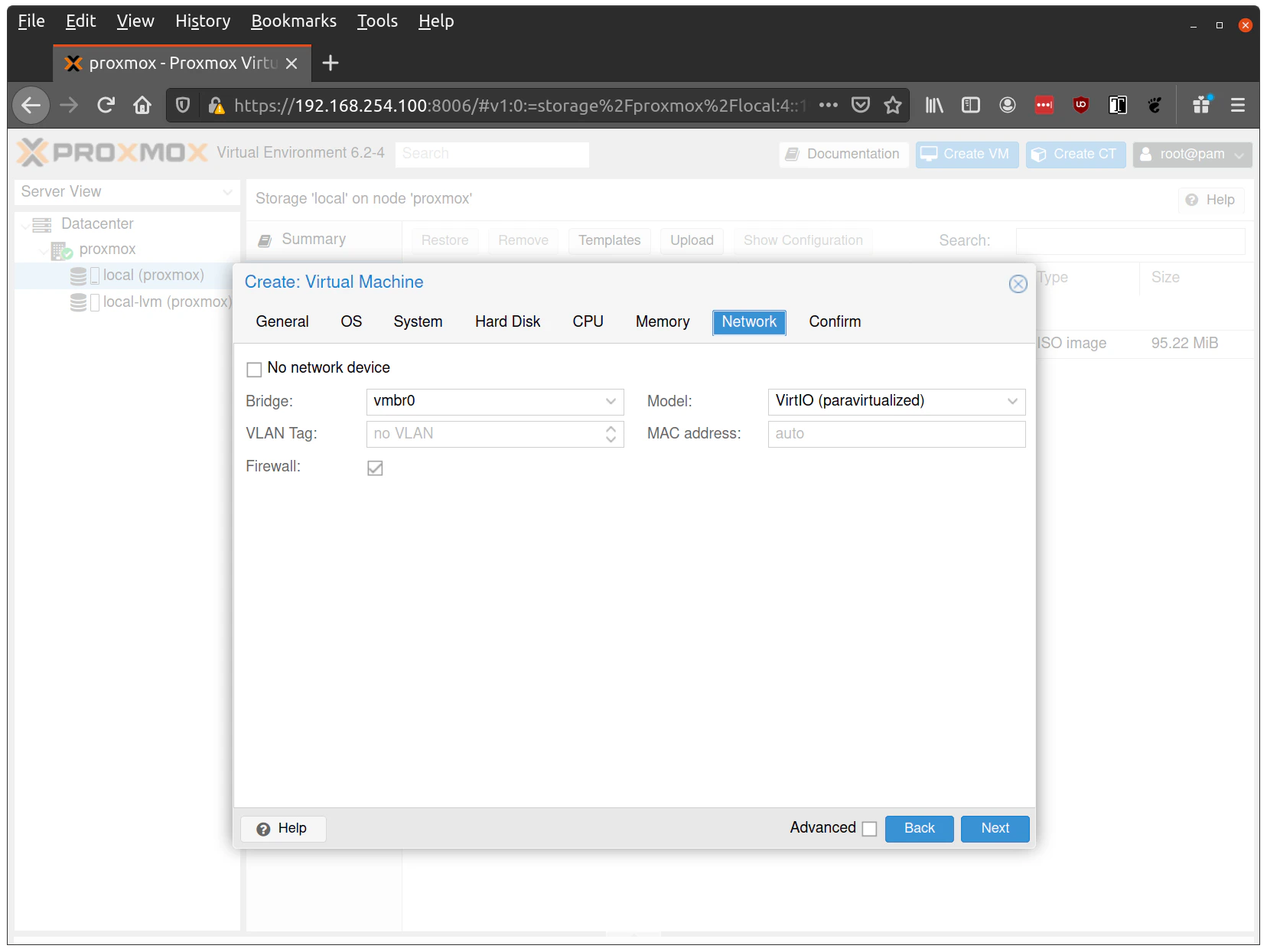
* Verify the VM is set to come up on the bridge interface

<img src="https://mintcdn.com/siderolabs-fe86397c/hVMyOt-W9fmKR5ik/talos/v1.13/platform-specific-installations/virtualized-platforms/images/proxmox-edit-nic.png?fit=max&auto=format&n=hVMyOt-W9fmKR5ik&q=85&s=f8506479e079edb5dcd1bbd281b1c5b6" width="500px" data-path="talos/v1.13/platform-specific-installations/virtualized-platforms/images/proxmox-edit-nic.png" />

> **Tip**: Enable a serial console (ttyS0) in Proxmox VM settings to see early boot logs and troubleshoot network connectivity issues.
> This is especially helpful when debugging DHCP timing or bridge configuration problems.
> Set **Serial port** to `ttyS0` in Proxmox and add `console=ttyS0` if you're customizing kernel args.

Finish creating the VM by clicking through the "Confirm" tab and then "Finish".

Repeat this process for a second VM to use as a worker node.
You can also repeat this for additional nodes desired.

> Note: Talos doesn't support memory hot plugging, if creating the VM programmatically don't enable memory hotplug on your
> Talos VM's.
> Doing so will cause Talos to be unable to see all available memory and have insufficient memory to complete
> installation of the cluster.

## Start control plane node

Once the VMs have been created and updated, start the VM that will be the first control plane node.
This VM will boot the ISO image specified earlier and enter "maintenance mode".

### With DHCP server

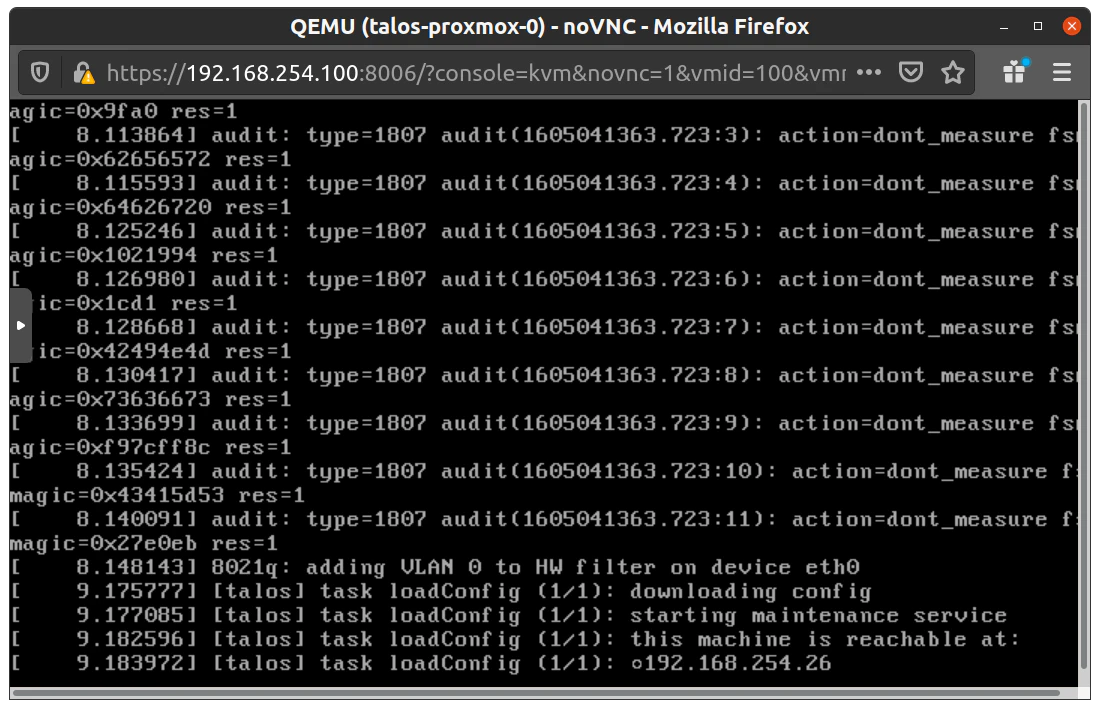
Once the machine has entered maintenance mode, there will be a console log that details the IP address that the node received.
Take note of this IP address, which will be referred to as `$CONTROL_PLANE_IP` for the rest of this guide.
If you wish to export this IP as a bash variable, simply issue a command like `export CONTROL_PLANE_IP=1.2.3.4`.

<img src="https://mintcdn.com/siderolabs-fe86397c/hVMyOt-W9fmKR5ik/talos/v1.13/platform-specific-installations/virtualized-platforms/images/proxmox-maintenance-mode.png?fit=max&auto=format&n=hVMyOt-W9fmKR5ik&q=85&s=79e8999d9e9d9baf6f592dc13741fb9c" width="500px" data-path="talos/v1.13/platform-specific-installations/virtualized-platforms/images/proxmox-maintenance-mode.png" />

### Without DHCP server

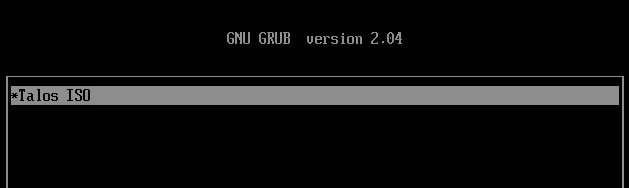
To apply the machine configurations in maintenance mode, VM has to have IP on the network.
So you can set it on boot time manually.

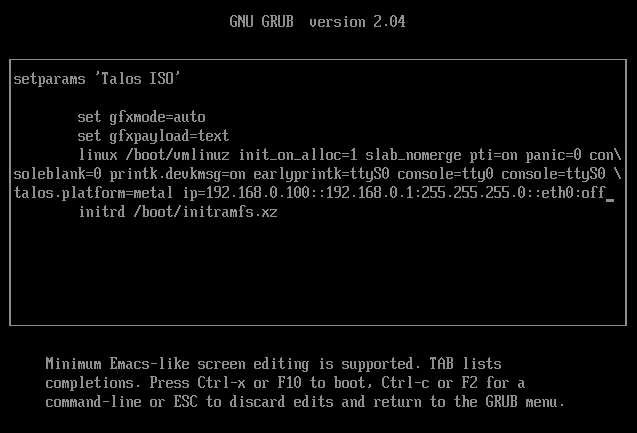
<img src="https://mintcdn.com/siderolabs-fe86397c/hVMyOt-W9fmKR5ik/talos/v1.13/platform-specific-installations/virtualized-platforms/images/proxmox-maintenance-mode-grub-menu.png?fit=max&auto=format&n=hVMyOt-W9fmKR5ik&q=85&s=683449790defd3764cb7fc8332e6ada2" width="600px" data-path="talos/v1.13/platform-specific-installations/virtualized-platforms/images/proxmox-maintenance-mode-grub-menu.png" />

Press `e` on the boot time.
And set the IP parameters for the VM.
[Format is](https://www.kernel.org/doc/Documentation/filesystems/nfs/nfsroot.txt):

```bash theme={null}
ip=<client-ip>:<srv-ip>:<gw-ip>:<netmask>:<host>:<device>:<autoconf>
```

For example \$CONTROL\_PLANE\_IP will be 192.168.0.100 and gateway 192.168.0.1

```bash theme={null}
linux /boot/vmlinuz init_on_alloc=1 slab_nomerge pti=on panic=0 consoleblank=0 printk.devkmsg=on earlyprintk=ttyS0 console=tty0 console=ttyS0 talos.platform=metal ip=192.168.0.100::192.168.0.1:255.255.255.0::eth0:off
```

<img src="https://mintcdn.com/siderolabs-fe86397c/hVMyOt-W9fmKR5ik/talos/v1.13/platform-specific-installations/virtualized-platforms/images/proxmox-maintenance-mode-grub-menu-ip.png?fit=max&auto=format&n=hVMyOt-W9fmKR5ik&q=85&s=91931c30efc935171e77d13637cd083b" width="630px" data-path="talos/v1.13/platform-specific-installations/virtualized-platforms/images/proxmox-maintenance-mode-grub-menu-ip.png" />

Then press Ctrl-x or F10

## Generate machine configurations

With the IP address above, you can now generate the machine configurations to use for installing Talos and Kubernetes.
Issue the following command, updating the output directory, cluster name, and control plane IP as you see fit:

```bash theme={null}
talosctl gen config talos-proxmox-cluster https://$CONTROL_PLANE_IP:6443 --output-dir _out
```

This will create several files in the `_out` directory: `controlplane.yaml`, `worker.yaml`, and `talosconfig`.

> Note: The Talos config by default will install to `/dev/sda`.
> Depending on your setup the virtual disk may be mounted differently Eg: `/dev/vda`.
> You can check for disks running the following command:
>
> ```bash theme={null}
> talosctl get disks --insecure --nodes $CONTROL_PLANE_IP
> ```
>
> Update `controlplane.yaml` and `worker.yaml` config files to point to the correct disk location.

### QEMU guest agent support

For QEMU guest agent support, you can generate the config with the custom install image:

<CodeBlock lang="sh">
  {`
    talosctl gen config talos-proxmox-cluster https://$CONTROL_PLANE_IP:6443 --output-dir _out --install-image factory.talos.dev/installer/ce4c980550dd2ab1b17bbf2b08801c7eb59418eafe8f279833297925d67c7515:${release_v1_13}
    `}
</CodeBlock>

> **Important**: Enable QEMU Guest Agent in Proxmox **only if** you built the ISO with the `siderolabs/qemu-guest-agent` extension in **Image Factory**.
> If you're using a standard Talos ISO without this extension, leave QEMU Guest Agent disabled in Proxmox VM settings.
> Enabling it without the extension will only generate log spam and won't provide any functionality.
> See: [Image Factory](../../learn-more/image-factory) for building a custom ISO with extensions.

* If you did include the extension, go to your VM → **Options** and set **QEMU Guest Agent** to **Enabled**.

## Create control plane node

Using the `controlplane.yaml` generated above, you can now apply this config using talosctl.
Issue:

```bash theme={null}
talosctl apply-config --insecure --nodes $CONTROL_PLANE_IP --file _out/controlplane.yaml
```

You should now see some action in the Proxmox console for this VM.
Talos will be installed to disk, the VM will reboot, and then Talos will configure the Kubernetes control plane on this VM.
The VM will remain in stage `Booting` until the bootstrap is completed in a later step.

> Note: This process can be repeated multiple times to create an HA control plane.

## Create worker node

Create at least a single worker node using a process similar to the control plane creation above.
Start the worker node VM and wait for it to enter "maintenance mode".
Take note of the worker node's IP address, which will be referred to as `$WORKER_IP`

Issue:

```bash theme={null}
talosctl apply-config --insecure --nodes $WORKER_IP --file _out/worker.yaml
```

> Note: This process can be repeated multiple times to add additional workers.

## Using the cluster

Once the cluster is available, you can make use of `talosctl` and `kubectl` to interact with the cluster.
For example, to view current running containers, run `talosctl containers` for a list of containers in the `system` namespace, or `talosctl containers -k` for the `k8s.io` namespace.
To view the logs of a container, use `talosctl logs <container>` or `talosctl logs -k <container>`.

First, configure talosctl to talk to your control plane node by issuing the following, updating paths and IPs as necessary:

```bash theme={null}
export TALOSCONFIG="_out/talosconfig"
talosctl config endpoint $CONTROL_PLANE_IP
talosctl config node $CONTROL_PLANE_IP
```

### Bootstrap etcd

```bash theme={null}
talosctl bootstrap
```

### Retrieve the `kubeconfig`

At this point we can retrieve the admin `kubeconfig` by running:

```bash theme={null}
talosctl kubeconfig .
```

## Troubleshooting

### Cluster creation issues

If `talosctl cluster create` fails with disk controller errors:

* **"virtio-scsi-single disk controller is not supported"**: This disk controller type causes Talos bootstrap to hang. Use `virtio` or `scsi` instead:
  ```bash theme={null}
  # Wrong - will be rejected
  talosctl cluster create --disks virtio-scsi-single:10GiB

  # Correct - use virtio or scsi
  talosctl cluster create --disks virtio:10GiB
  talosctl cluster create --disks scsi:10GiB
  ```

### Network connectivity issues

If nodes fail to obtain IP addresses or show "network is unreachable" errors:

1. **Verify bridge interface**: Ensure the bridge interface (e.g., `vmbr0`) exists and is UP before starting VMs
   ```bash theme={null}
   ip link show vmbr0
   ```

2. **Check DHCP server**: Ensure DHCP server is running and reachable from the bridge network

3. **Firewall rules**: If Proxmox VM firewall is enabled, allow DHCP traffic (UDP ports 67/68).
   If you enforce further filtering, ensure control-plane/API connectivity per your environment's policy (see Talos networking docs).

4. **VLAN configuration**: Ensure VLAN tags match between bridge configuration, VM network settings, and switch configuration

5. **Serial console**: Enable serial console to view early boot logs and network initialization messages

### Disk Controller Issues

* **Configuration rejected**: If you see "virtio-scsi-single disk controller is not supported", use `--disks virtio:10GiB` instead of `--disks virtio-scsi-single:10GiB`
* **Bootstrap hangs**: If bootstrap hangs or disks aren't discovered, verify you're using **VirtIO SCSI** (not "VirtIO SCSI Single")
* **Disk not found**: Check disk path using `talosctl get disks --insecure --nodes $CONTROL_PLANE_IP` and update `install.disk` in machine config if needed (e.g., `install.disk: /dev/vda`)

### Secure boot

For Secure Boot setup, see the [Secure Boot documentation](../bare-metal-platforms/secureboot).

## Cleaning up

To cleanup, simply stop and delete the virtual machines from the Proxmox UI.