;
};
In this guide we will create a Kubernetes cluster using QEMU.
## Requirements
* QEMU
* a kernel with
* KVM enabled (`/dev/kvm` must exist)
* `CONFIG_NET_SCH_NETEM` enabled
* `CONFIG_NET_SCH_INGRESS` enabled
* at least `CAP_SYS_ADMIN` and `CAP_NET_ADMIN` capabilities
* `bridge`, `static` and `firewall` CNI plugins from the [standard CNI plugins](https://github.com/containernetworking/cni), and `tc-redirect-tap` CNI plugin from the [awslabs tc-redirect-tap](https://github.com/awslabs/tc-redirect-tap) installed to `/opt/cni/bin` (installed automatically by `talosctl`)
* iptables
* `/var/run/netns` directory should exist
* QEMU
* Apple Silicon Mac
## Installation
### How to get QEMU
Install QEMU with your operating system package manager.
For example, on Ubuntu for x86:
```bash theme={null}
apt install qemu-system-x86 qemu-kvm
```
Via brew:
```bash theme={null}
brew install qemu
```
### Install talosctl
You can download `talosctl` on MacOS and Linux via:
```bash theme={null}
brew install siderolabs/tap/talosctl
```
For manual installation and other platforms please see the [talosctl installation guide](../../getting-started/talosctl).
## Create the cluster
For the first time, create root state directory as your user so that you can inspect the logs as non-root user:
```bash theme={null}
mkdir -p ~/.talos/clusters
```
Create the cluster:
```bash theme={null}
sudo --preserve-env=HOME talosctl cluster create qemu
```
On Linux, before the first cluster is created, `talosctl` will download the CNI bundle for the VM provisioning and install it to `~/.talos/cni` directory.
Once the above finishes successfully, your talosconfig (`~/.talos/config`) will be configured to point to the new cluster, and `kubeconfig` will be
downloaded and merged into default kubectl config location (`~/.kube/config`).
### Presets
The `talosctl cluster create qemu` command has various presets available via the `--presets` flag to modify behavior.
See [reference documentation](../../reference/cli#talosctl-cluster-create-qemu") for more details.
### Image factory schematic
Optionally a custom [Image Factory](../../getting-started/talosctl) schematic ID can be provided via the `--schematic-id` flag.
### Omni
The `omni-api-endpoint` flag configures nodes to connect to an Omni instance once booted.
Using [SideroLink](../../networking/siderolink), the local QEMU nodes can communicate with Omni as long as the endpoint is reachable.
This enables connections to a local Omni instance, a cloud-hosted Omni instance, or a Sidero SaaS Omni instance.
## Using the cluster
Once the cluster is available, you can make use of `talosctl` and `kubectl` to interact with the cluster.
For example, to view current running containers, run `talosctl -n 10.5.0.2 containers` for a list of containers in the `system` namespace, or `talosctl -n 10.5.0.2 containers -k` for the `k8s.io` namespace.
To view the logs of a container, use `talosctl -n 10.5.0.2 logs ` or `talosctl -n 10.5.0.2 logs -k `.
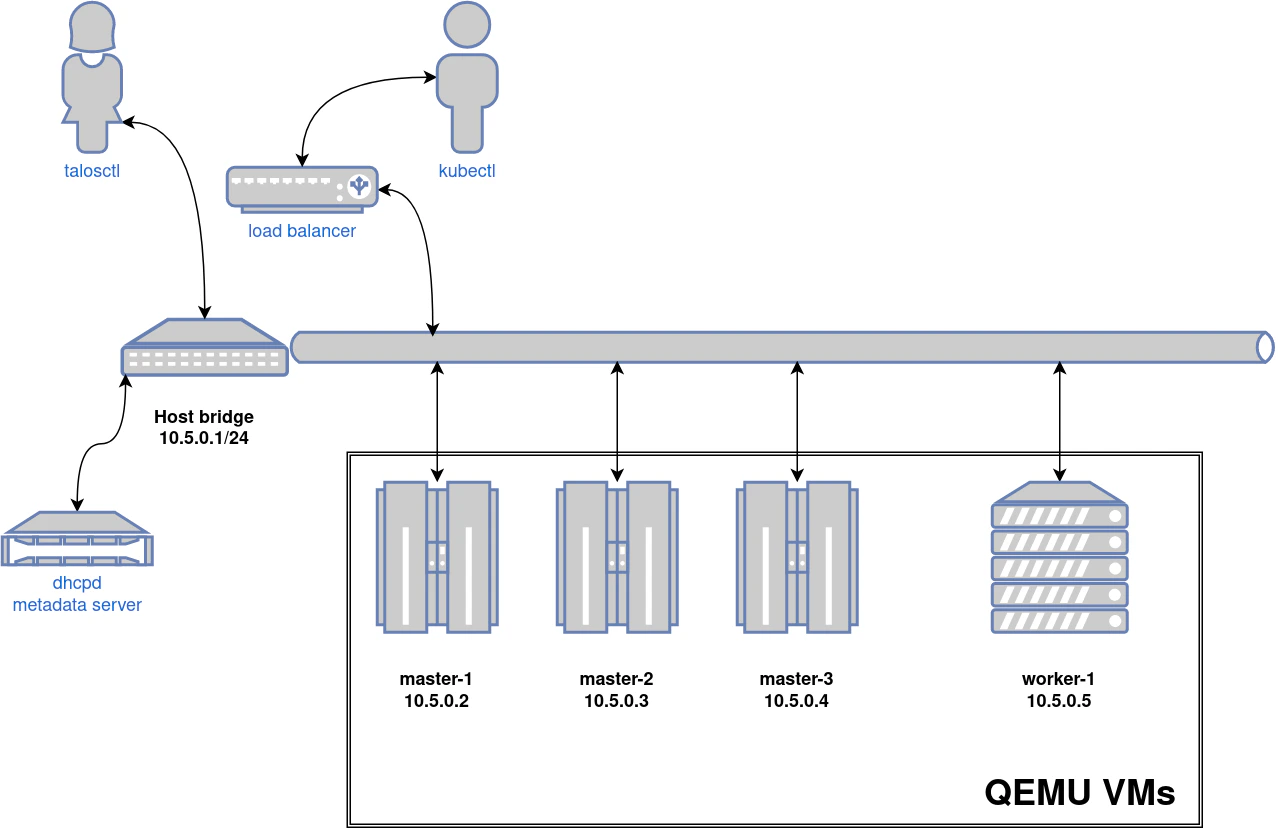
A bridge interface will be created, and assigned the default IP 10.5.0.1.
Each node will be directly accessible on the subnet specified at cluster creation time.
A loadbalancer runs on 10.5.0.1 by default, which handles loadbalancing for the Kubernetes APIs.
You can see a summary of the cluster state by running:
```bash theme={null}
$ talosctl cluster show --provisioner qemu
PROVISIONER qemu
NAME talos-default
NETWORK NAME talos-default
NETWORK CIDR 10.5.0.0/24
NETWORK GATEWAY 10.5.0.1
NETWORK MTU 1500
NODES:
NAME TYPE IP CPU RAM DISK
talos-default-controlplane-1 ControlPlane 10.5.0.2 1.00 1.6 GB 4.3 GB
talos-default-controlplane-2 ControlPlane 10.5.0.3 1.00 1.6 GB 4.3 GB
talos-default-controlplane-3 ControlPlane 10.5.0.4 1.00 1.6 GB 4.3 GB
talos-default-worker-1 Worker 10.5.0.5 1.00 1.6 GB 4.3 GB
```
## Cleaning up
To cleanup, run:
```bash theme={null}
sudo --preserve-env=HOME talosctl cluster destroy --provisioner qemu
```
> **Note**: In that case that the host machine is rebooted before destroying the cluster, you may need to manually remove `~/.talos/clusters/talos-default`.
## Manual clean up
The `talosctl cluster destroy` command depends heavily on the clusters state directory.
It contains all related information of the cluster.
The PIDs and network associated with the cluster nodes.
If you happened to have deleted the state folder by mistake or you would like to cleanup
the environment, here are the steps how to do it manually:
### Remove VM launchers
Find the process of `talosctl qemu-launch`:
```bash theme={null}
ps -elf | grep 'talosctl qemu-launch'
```
To remove the VMs manually, execute:
```bash theme={null}
sudo kill -s SIGTERM
```
Example output, where VMs are running with PIDs **157615** and **157617**
```bash theme={null}
ps -elf | grep '[t]alosctl qemu-launch'
0 S root 157615 2835 0 80 0 - 184934 - 07:53 ? 00:00:00 talosctl qemu-launch
0 S root 157617 2835 0 80 0 - 185062 - 07:53 ? 00:00:00 talosctl qemu-launch
sudo kill -s SIGTERM 157615
sudo kill -s SIGTERM 157617
```
### Stopping VMs
Find the process of `qemu-system`:
```bash theme={null}
ps -elf | grep 'qemu-system'
```
To stop the VMs manually, execute:
```bash theme={null}
sudo kill -s SIGTERM
```
Example output, where VMs are running with PIDs **158065** and **158216**
```bash theme={null}
ps -elf | grep qemu-system
2 S root 1061663 1061168 26 80 0 - 1786238 - 14:05 ? 01:53:56 qemu-system-x86_64 -m 2048 -drive format=raw,if=virtio,file=/home/username/.talos/clusters/talos-default/bootstrap-master.disk -smp cpus=2 -cpu max -nographic -netdev tap,id=net0,ifname=tap0,script=no,downscript=no -device virtio-net-pci,netdev=net0,mac=1e:86:c6:b4:7c:c4 -device virtio-rng-pci -no-reboot -boot order=cn,reboot-timeout=5000 -smbios type=1,uuid=7ec0a73c-826e-4eeb-afd1-39ff9f9160ca -machine q35,accel=kvm
2 S root 1061663 1061170 67 80 0 - 621014 - 21:23 ? 00:00:07 qemu-system-x86_64 -m 2048 -drive format=raw,if=virtio,file=/homeusername/.talos/clusters/talos-default/pxe-1.disk -smp cpus=2 -cpu max -nographic -netdev tap,id=net0,ifname=tap0,script=no,downscript=no -device virtio-net-pci,netdev=net0,mac=36:f3:2f:c3:9f:06 -device virtio-rng-pci -no-reboot -boot order=cn,reboot-timeout=5000 -smbios type=1,uuid=ce12a0d0-29c8-490f-b935-f6073ab916a6 -machine q35,accel=kvm
sudo kill -s SIGTERM 1061663
sudo kill -s SIGTERM 1061663
```
### Remove load balancer
Find the process of `talosctl loadbalancer-launch`:
```bash theme={null}
ps -elf | grep 'talosctl loadbalancer-launch'
```
To remove the LB manually, execute:
```bash theme={null}
sudo kill -s SIGTERM
```
Example output, where loadbalancer is running with PID **157609**
```bash theme={null}
ps -elf | grep '[t]alosctl loadbalancer-launch'
4 S root 157609 2835 0 80 0 - 184998 - 07:53 ? 00:00:07 talosctl loadbalancer-launch --loadbalancer-addr 10.5.0.1 --loadbalancer-upstreams 10.5.0.2
sudo kill -s SIGTERM 157609
```
### Remove DHCP server
Find the process of `talosctl dhcpd-launch`:
```bash theme={null}
ps -elf | grep 'talosctl dhcpd-launch'
```
To remove the LB manually, execute:
```bash theme={null}
sudo kill -s SIGTERM
```
Example output, where loadbalancer is running with PID **157609**
```bash theme={null}
ps -elf | grep '[t]alosctl dhcpd-launch'
4 S root 157609 2835 0 80 0 - 184998 - 07:53 ? 00:00:07 talosctl dhcpd-launch --state-path /home/username/.talos/clusters/talos-default --addr 10.5.0.1 --interface talosbd9c32bc
sudo kill -s SIGTERM 157609
```
### Remove network
This is more tricky part as if you have already deleted the state folder.
If you didn't then it is written in the `state.yaml` in the
`~/.talos/clusters/` directory.
```bash theme={null}
sudo cat ~/.talos/clusters//state.yaml | grep bridgename
bridgename: talos
```
If you only had one cluster, then it will be the interface with name
`talos`
```bash theme={null}
46: talos: mtu 1500 qdisc noqueue state DOWN group default qlen 1000
link/ether a6:72:f4:0a:d3:9c brd ff:ff:ff:ff:ff:ff
inet 10.5.0.1/24 brd 10.5.0.255 scope global talos17c13299
valid_lft forever preferred_lft forever
inet6 fe80::a472:f4ff:fe0a:d39c/64 scope link
valid_lft forever preferred_lft forever
```
To remove this interface:
```bash theme={null}
sudo ip link del talos
```
The bridge is automatically created by qemu, so removing all the machines will also result in the deletion of the bridge interface.
### Remove state directory
To remove the state directory execute:
```bash theme={null}
sudo rm -Rf /home/$USER/.talos/clusters/
```
## Troubleshooting
### Logs
Inspect logs directory
```bash theme={null}
sudo cat ~/.talos/clusters//*.log
```
Logs are saved under `--.log`
For example in case of **k8s** cluster name:
```bash theme={null}
ls -la ~/.talos/clusters/k8s | grep log
-rw-r--r--. 1 root root 69415 Apr 26 20:58 k8s-master-1.log
-rw-r--r--. 1 root root 68345 Apr 26 20:58 k8s-worker-1.log
-rw-r--r--. 1 root root 24621 Apr 26 20:59 lb.log
```
Inspect logs during the installation
```bash theme={null}
tail -f ~/.talos/clusters//*.log
```
## How it works
### Linux
On Linux the KVM accelerator is utilized.
Networking is created using the CNI plugins.
For DHCP a custom server is used.
### MacOS
On Macos the `hvf` accelerator (Apple Hypervisor Framework) is utilized.
Networking is created by QEMU via the [apple vmnet framework](https://developer.apple.com/documentation/vmnet) which handles everything but the DHCP for which a custom server is used instead.
 ## Requirements