> ## Documentation Index
> Fetch the complete documentation index at: https://docs.siderolabs.com/llms.txt
> Use this file to discover all available pages before exploring further.

# Wireguard Network

> A guide on how to set up Wireguard network using Kernel module.

export const VersionWarningBanner = () => {
  const latestVersion = "v1.13";
  const [latestUrl, setLatestUrl] = useState(null);
  const [currentVersion, setCurrentVersion] = useState(null);
  const [isBeta, setIsBeta] = useState(false);
  const parseVersion = v => v.replace("v", "").split(".").map(Number);
  const isGreaterVersion = (a, b) => {
    const [aMajor, aMinor] = parseVersion(a);
    const [bMajor, bMinor] = parseVersion(b);
    if (aMajor > bMajor) return true;
    if (aMajor === bMajor && aMinor > bMinor) return true;
    return false;
  };
  useEffect(() => {
    if (typeof window === "undefined") return;
    const {pathname, hash, search} = window.location;
    const match = pathname.match(/\/talos\/(v\d+\.\d+)\//);
    if (!match) return;
    const detectedVersion = match[1];
    if (detectedVersion === latestVersion) return;
    setCurrentVersion(detectedVersion);
    if (isGreaterVersion(detectedVersion, latestVersion)) {
      setIsBeta(true);
    }
    const newPath = pathname.replace(`/talos/${detectedVersion}/`, `/talos/${latestVersion}/`);
    setLatestUrl(`${newPath}${search}${hash}`);
  }, []);
  if (!latestUrl || !currentVersion) return null;
  return <div className="not-prose sticky top-6 z-50 my-6">
      <div className="border border-yellow-500/30 bg-yellow-500/10 px-4 py-3 rounded-xl">
        <div className="text-sm">
          {isBeta ? <>
              ⚠️ You are viewing a <strong>beta version</strong> of Talos ({currentVersion}).
              This version may be unstable.
              <a href={latestUrl} className="ml-2 underline text-yellow-400 hover:text-yellow-300 font-medium">
                View latest stable version {latestVersion} →
              </a>
            </> : <>
              ⚠️ You are viewing an older version of Talos ({currentVersion}).
              <a href={latestUrl} className="ml-2 underline text-yellow-400 hover:text-yellow-300 font-medium">
                View the latest version {latestVersion} →
              </a>
            </>}
        </div>
      </div>
    </div>;
};

<VersionWarningBanner />

## Configuring Wireguard Network

### Quick Start

The quickest way to try out Wireguard is to use `talosctl cluster create` command:

```bash theme={null}
talosctl cluster create --wireguard-cidr 10.1.0.0/24
```

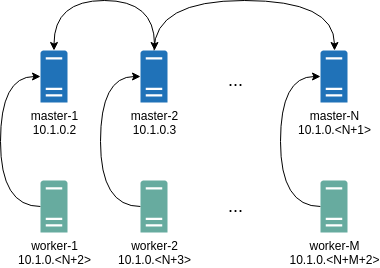
It will automatically generate Wireguard network configuration for each node with the following network topology:

<img src="https://mintcdn.com/siderolabs-fe86397c/6QB4B200XYKW7seS/talos/v1.10/networking/images/example-topology.png?fit=max&auto=format&n=6QB4B200XYKW7seS&q=85&s=4b50022dcb4963bdc4438376bc1c2574" width="380" height="268" data-path="talos/v1.10/networking/images/example-topology.png" />

Where all controlplane nodes will be used as Wireguard servers which listen on port 51111.
All controlplanes and workers will connect to all controlplanes.
It also sets `PersistentKeepalive` to 5 seconds to establish controlplanes to workers connection.

After the cluster is deployed it should be possible to verify Wireguard network connectivity.
It is possible to deploy a container with `hostNetwork` enabled, then do `kubectl exec <container> /bin/bash` and either do:

```bash theme={null}
ping 10.1.0.2
```

Or install `wireguard-tools` package and run:

```bash theme={null}
wg show
```

Wireguard show should output something like this:

```bash theme={null}
interface: wg0
  public key: OMhgEvNIaEN7zeCLijRh4c+0Hwh3erjknzdyvVlrkGM=
  private key: (hidden)
  listening port: 47946

peer: 1EsxUygZo8/URWs18tqB5FW2cLVlaTA+lUisKIf8nh4=
  endpoint: 10.5.0.2:51111
  allowed ips: 10.1.0.0/24
  latest handshake: 1 minute, 55 seconds ago
  transfer: 3.17 KiB received, 3.55 KiB sent
  persistent keepalive: every 5 seconds
```

It is also possible to use generated configuration as a reference by pulling generated config files using:

```bash theme={null}
talosctl get mc v1alpha1 -o jsonpath='{.spec}' -n 10.5.0.2 > controlplane.yaml
talosctl get mc v1alpha1 -o jsonpath='{.spec}' -n 10.5.0.3 > worker.yaml
```

### Manual Configuration

All Wireguard configuration can be done by changing Talos machine config files.
As an example we will use this official Wireguard [quick start tutorial](https://www.wireguard.com/quickstart/).

### Key Generation

This part is exactly the same:

```bash theme={null}
wg genkey | tee privatekey | wg pubkey > publickey
```

### Setting up Device

Inline comments show relations between configs and `wg` quickstart tutorial commands:

```yaml theme={null}
...
network:
  interfaces:
    ...
      # ip link add dev wg0 type wireguard
    - interface: wg0
      mtu: 1500
      # ip address add dev wg0 192.168.2.1/24
      addresses:
        - 192.168.2.1/24
      # wg set wg0 listen-port 51820 private-key /path/to/private-key peer ABCDEF... allowed-ips 192.168.88.0/24 endpoint 209.202.254.14:8172
      wireguard:
        privateKey: <privatekey file contents>
        listenPort: 51820
        peers:
          allowedIPs:
            - 192.168.88.0/24
          endpoint: 209.202.254.14:8172
          publicKey: ABCDEF...
...
```

When `networkd` gets this configuration it will create the device, configure it and will bring it up (equivalent to `ip link set up dev wg0`).

All supported config parameters are described in the [Machine Config Reference](../reference/configuration/v1alpha1/config#Config.machine.network.interfaces..wireguard).
