> ## Documentation Index
> Fetch the complete documentation index at: https://docs.siderolabs.com/llms.txt
> Use this file to discover all available pages before exploring further.
# Configure Workspace ONE Access for Omni
> Set up Workspace ONE Access as a SAML identity provider for Omni.
This guide walks through creating a Web App in Workspace ONE Access (WSOA) and configuring Omni to authenticate against it via SAML.
## Configure Workspace ONE Access
This section walks through creating and configuring the Web App inside WSOA.
### Step 1: Create a new Web App
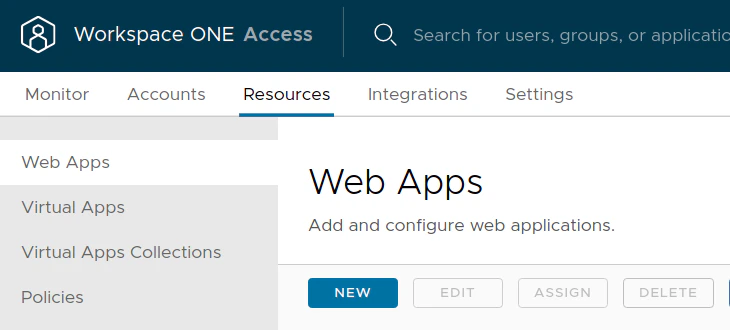
Log in to the WSOA user interface and navigate to **Resources → Web Apps → New**.
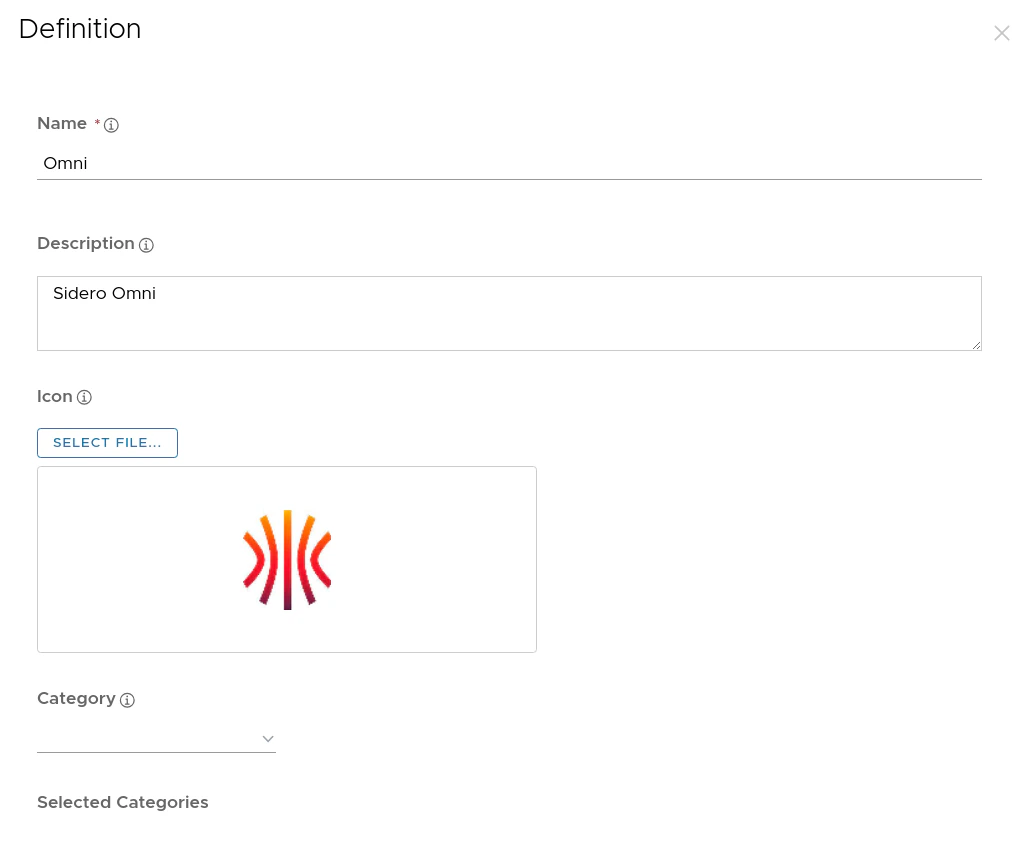
 Enter the following values to identify the application, then click **Next**.
| Option | Value | Description |
| ----------- | ----------- | ----------------------------------- |
| Name | Omni | A descriptive name for the Web App |
| Description | Sidero Omni | A description for the Web App |
| Icon | Image | An icon to display on the dashboard |
Enter the following values to identify the application, then click **Next**.
| Option | Value | Description |
| ----------- | ----------- | ----------------------------------- |
| Name | Omni | A descriptive name for the Web App |
| Description | Sidero Omni | A description for the Web App |
| Icon | Image | An icon to display on the dashboard |
 ### Step 2: Configure Single Sign-On
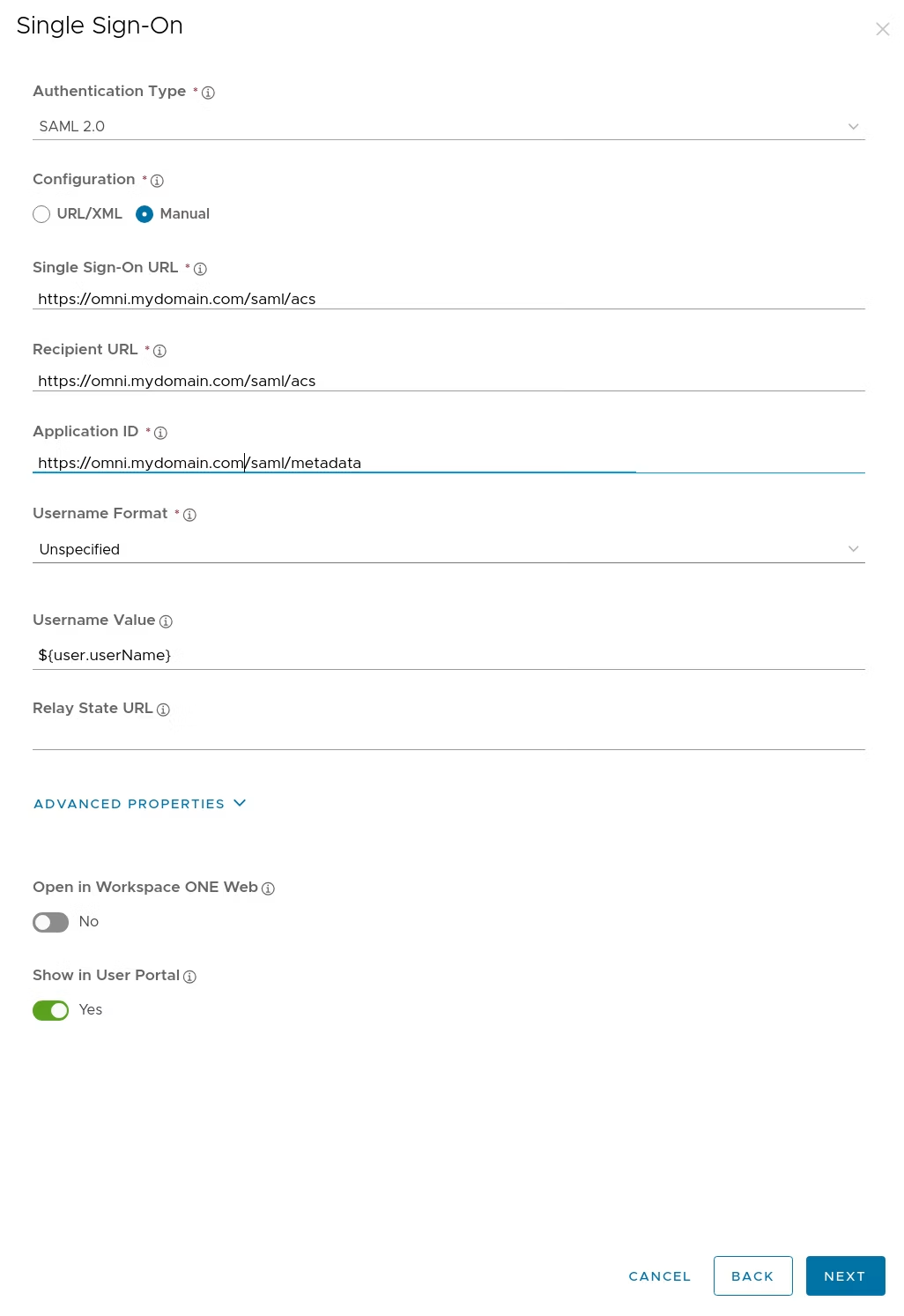
On the **Single Sign-On** page, configure the authentication type and endpoint URLs. The SSO URL and Recipient URL both point to Omni's Assertion Consumer Service endpoint, and the Application ID points to its SAML metadata URL.
| Option | Value | Description |
| ------------------- | ----------------------------------- | --------------------------------------------- |
| Authentication Type | SAML 2.0 | The authentication protocol to use |
| Configuration | Manual | Manually specify all fields |
| Single Sign-On URL | `https://{omni-host}/saml/acs` | Omni's Assertion Consumer Service URL |
| Recipient URL | `https://{omni-host}/saml/acs` | Must match the Single Sign-On URL |
| Application ID | `https://{omni-host}/saml/metadata` | Omni's SAML metadata URL |
| Username format | Unspecified | No specific username format required |
| Username value | `${user.userName}` | The username to include in the SAML assertion |
| Relay State URL | Blank | Leave this empty |
### Step 2: Configure Single Sign-On
On the **Single Sign-On** page, configure the authentication type and endpoint URLs. The SSO URL and Recipient URL both point to Omni's Assertion Consumer Service endpoint, and the Application ID points to its SAML metadata URL.
| Option | Value | Description |
| ------------------- | ----------------------------------- | --------------------------------------------- |
| Authentication Type | SAML 2.0 | The authentication protocol to use |
| Configuration | Manual | Manually specify all fields |
| Single Sign-On URL | `https://{omni-host}/saml/acs` | Omni's Assertion Consumer Service URL |
| Recipient URL | `https://{omni-host}/saml/acs` | Must match the Single Sign-On URL |
| Application ID | `https://{omni-host}/saml/metadata` | Omni's SAML metadata URL |
| Username format | Unspecified | No specific username format required |
| Username value | `${user.userName}` | The username to include in the SAML assertion |
| Relay State URL | Blank | Leave this empty |
 ### Step 3: Configure advanced signing properties
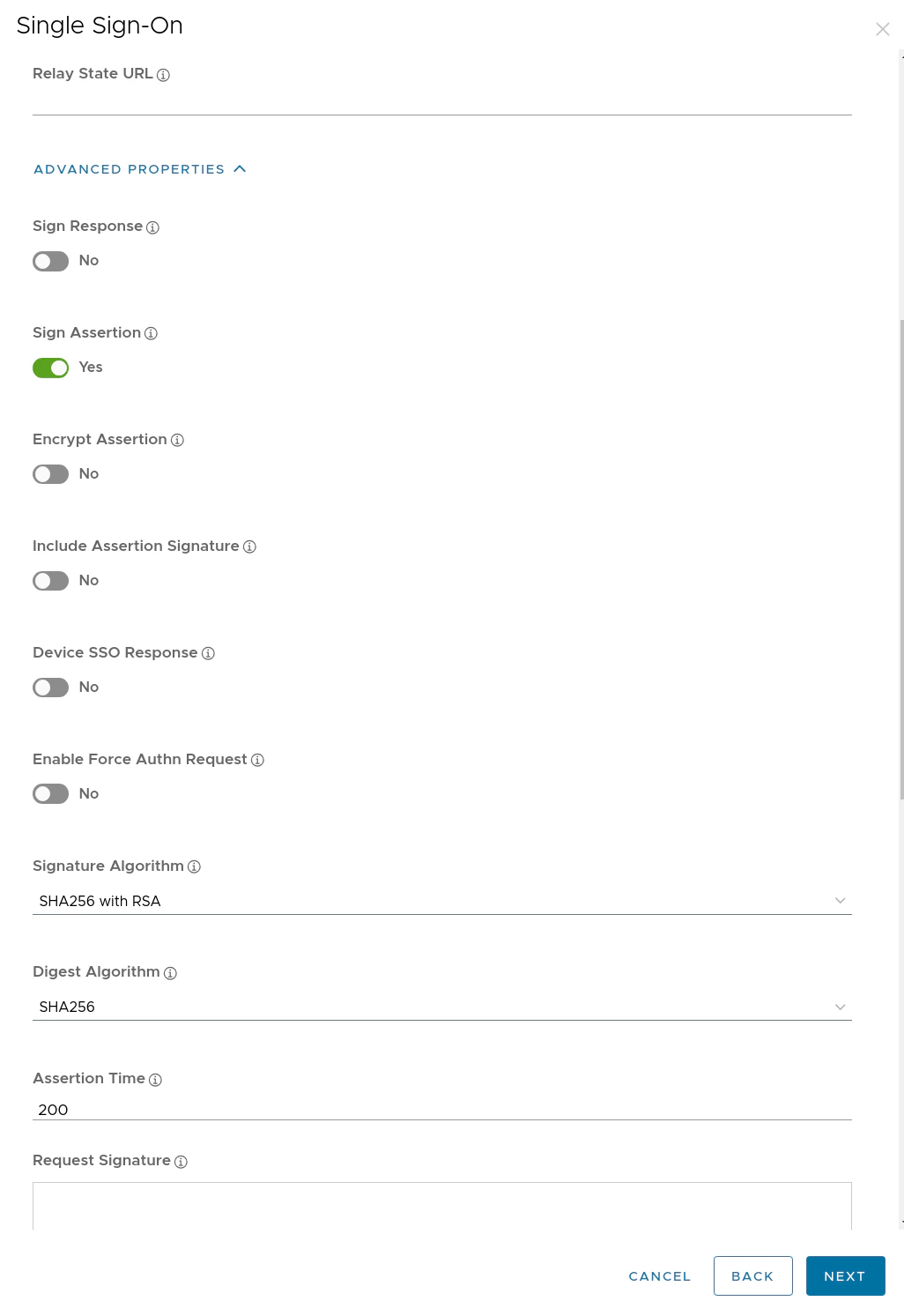
Still on the **Single Sign-On** page, scroll to the **Advanced Properties** section and set the following toggles. The key settings here are enabling assertion signing (required by Omni) while leaving response signing and assertion encryption off.
| Option | Value | Description |
| --------------------------- | ---------------- | -------------------------------------------- |
| Sign Response | False | Do not sign the full SAML response |
| Sign Assertion | True | Sign the SAML assertion (required) |
| Encrypt Assertion | False | Do not encrypt the assertion |
| Include Assertion Signature | False | Do not embed the signature separately |
| Device SSO Response | False | Disable Device SSO |
| Enable Force Authn Request | False | Do not force re-authentication |
| Signature Algorithm | SHA-256 with RSA | Algorithm used to sign the assertion |
| Digest Algorithm | SHA-256 | Algorithm used to compute the digest |
| Assertion Lifetime | 200 | How long (in seconds) the assertion is valid |
### Step 3: Configure advanced signing properties
Still on the **Single Sign-On** page, scroll to the **Advanced Properties** section and set the following toggles. The key settings here are enabling assertion signing (required by Omni) while leaving response signing and assertion encryption off.
| Option | Value | Description |
| --------------------------- | ---------------- | -------------------------------------------- |
| Sign Response | False | Do not sign the full SAML response |
| Sign Assertion | True | Sign the SAML assertion (required) |
| Encrypt Assertion | False | Do not encrypt the assertion |
| Include Assertion Signature | False | Do not embed the signature separately |
| Device SSO Response | False | Disable Device SSO |
| Enable Force Authn Request | False | Do not force re-authentication |
| Signature Algorithm | SHA-256 with RSA | Algorithm used to sign the assertion |
| Digest Algorithm | SHA-256 | Algorithm used to compute the digest |
| Assertion Lifetime | 200 | How long (in seconds) the assertion is valid |
 ### Step 4: Map custom attributes
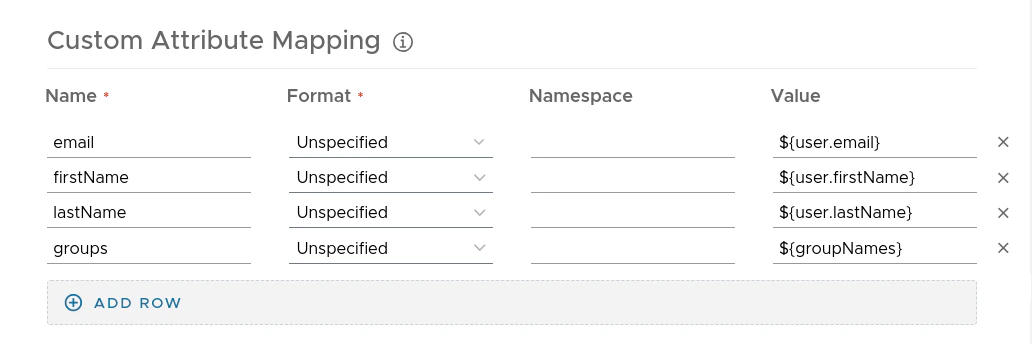
At the bottom of the **Single Sign-On** page, add the following entries in the **Custom Attribute Mapping** section. These attributes allow Omni to identify users and apply group-based role assignments.
| Name | Format | Namespace | Value | Description |
| --------- | ----------- | --------- | ------------------- | ---------------------------- |
| email | Unspecified | | `${user.email}` | The user's email address |
| firstName | Unspecified | | `${user.firstName}` | The user's first name |
| lastName | Unspecified | | `${user.lastName}` | The user's last name |
| groups | Unspecified | | `${groupNames}` | The user's group memberships |
### Step 4: Map custom attributes
At the bottom of the **Single Sign-On** page, add the following entries in the **Custom Attribute Mapping** section. These attributes allow Omni to identify users and apply group-based role assignments.
| Name | Format | Namespace | Value | Description |
| --------- | ----------- | --------- | ------------------- | ---------------------------- |
| email | Unspecified | | `${user.email}` | The user's email address |
| firstName | Unspecified | | `${user.firstName}` | The user's first name |
| lastName | Unspecified | | `${user.lastName}` | The user's last name |
| groups | Unspecified | | `${groupNames}` | The user's group memberships |
 ### Step 5: Select an access policy
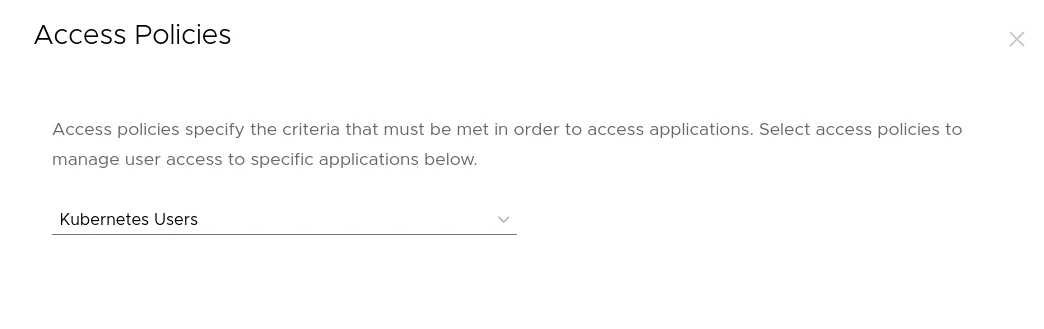
Click **Next** and select the access policy required by your organization.
### Step 5: Select an access policy
Click **Next** and select the access policy required by your organization.
 ### Step 6: Assign users and groups
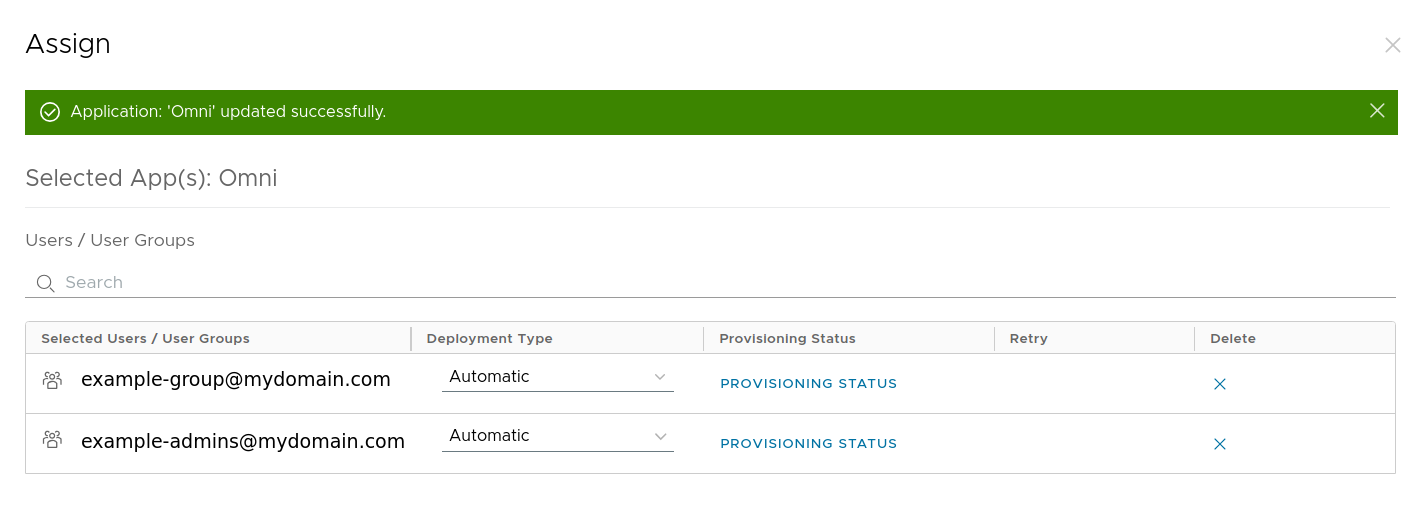
Click **Save & Assign** and configure who is permitted to log in to Omni.
* Select the permitted group from your Active Directory or LDAP server.
* Set **Deployment Type** to **Automatic**.
### Step 6: Assign users and groups
Click **Save & Assign** and configure who is permitted to log in to Omni.
* Select the permitted group from your Active Directory or LDAP server.
* Set **Deployment Type** to **Automatic**.

 ### Step 7: Obtain the IdP metadata URL
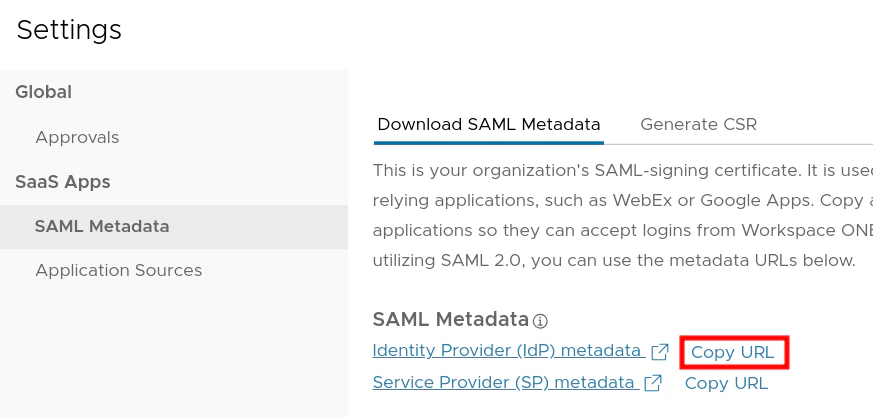
Navigate to **Settings** and click **Copy URL** to copy the IdP metadata URL.
### Step 7: Obtain the IdP metadata URL
Navigate to **Settings** and click **Copy URL** to copy the IdP metadata URL.
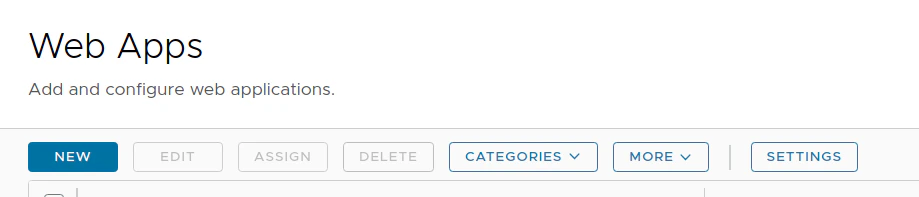 Copy this URL — you will pass it to Omni as the `--auth-saml-url` flag in the next step.
 ## Configure Omni to use Workspace ONE Access
Pass the following flags to the Omni container at startup to enable SAML authentication. Alternatively, you can set these values in the [Omni configuration file](../../reference/omni-configuration) instead of passing them as CLI flags.
| Flag | Description |
| ------------------------------------------------ | ---------------------------------------------------------------------------------------------------------------------- |
| `--auth-saml-enabled` | Enables SAML authentication |
| `--auth-saml-url` | The IdP metadata URL copied in Step 7 |
| `--auth-saml-label-rules='{"groups": "groups"}'` | Extracts the `groups` attribute from the SAML assertion and maps it to the label `saml.omni.sidero.dev/groups/` |
For example:
```bash theme={null}
--auth-saml-enabled=true
--auth-saml-url=https://{workspace-one-host}/SAAS/API/1.0/GET/metadata/idp.xml
--auth-saml-label-rules='{"groups": "groups"}'
```
Once Omni is running with these flags, refer to the [Auto-assign roles to SAML users](https://omni.siderolabs.com/docs/how-to-guides/how-to-auto-assign-roles-to-saml-users/) guide to automatically assign roles based on SAML group attributes.
When using groups, the label prefix is `saml.omni.sidero.dev/groups/` rather than a role name directly. For example:
```yaml theme={null}
metadata:
namespace: default
type: SAMLLabelRules.omni.sidero.dev
id: assign-admin-to-platform-admins-label
spec:
assignroleonregistration: Operator
matchlabels:
- saml.omni.sidero.dev/groups/omni-platform-administrators
```
## Configure Omni to use Workspace ONE Access
Pass the following flags to the Omni container at startup to enable SAML authentication. Alternatively, you can set these values in the [Omni configuration file](../../reference/omni-configuration) instead of passing them as CLI flags.
| Flag | Description |
| ------------------------------------------------ | ---------------------------------------------------------------------------------------------------------------------- |
| `--auth-saml-enabled` | Enables SAML authentication |
| `--auth-saml-url` | The IdP metadata URL copied in Step 7 |
| `--auth-saml-label-rules='{"groups": "groups"}'` | Extracts the `groups` attribute from the SAML assertion and maps it to the label `saml.omni.sidero.dev/groups/` |
For example:
```bash theme={null}
--auth-saml-enabled=true
--auth-saml-url=https://{workspace-one-host}/SAAS/API/1.0/GET/metadata/idp.xml
--auth-saml-label-rules='{"groups": "groups"}'
```
Once Omni is running with these flags, refer to the [Auto-assign roles to SAML users](https://omni.siderolabs.com/docs/how-to-guides/how-to-auto-assign-roles-to-saml-users/) guide to automatically assign roles based on SAML group attributes.
When using groups, the label prefix is `saml.omni.sidero.dev/groups/` rather than a role name directly. For example:
```yaml theme={null}
metadata:
namespace: default
type: SAMLLabelRules.omni.sidero.dev
id: assign-admin-to-platform-admins-label
spec:
assignroleonregistration: Operator
matchlabels:
- saml.omni.sidero.dev/groups/omni-platform-administrators
```