> ## Documentation Index
> Fetch the complete documentation index at: https://docs.siderolabs.com/llms.txt
> Use this file to discover all available pages before exploring further.
# Configure Unifi Identity Enterprise for Omni
> Set up Unifi Identity Enterprise as a SAML identity provider for Omni.
This guide walks you through connecting Unifi Identity Enterprise (UIIE) to Omni using SAML-based Single Sign-On (SSO).
You’ll complete this in two parts:
1. Configure a SAML app in the UIIE Manager portal.
2. Configure Omni for SAML with UIIE
## Configure a SAML app in the UIIE Manager portal
Follow these steps to create and configure a SAML app in the UIIE Manager portal.
### Step 1: Create a new SAML app
Start by creating a custom SAML app in the UIIE Manager portal.
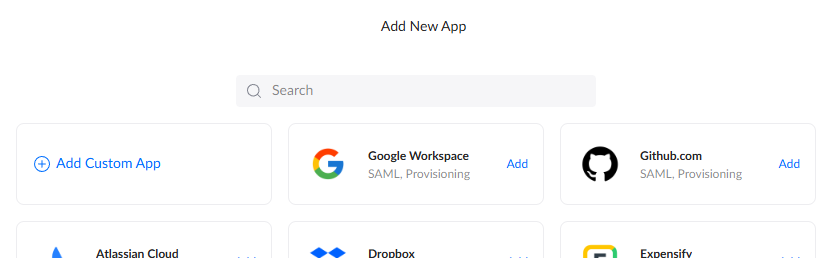
1. Log in to the UIIE Manager portal and navigate to **SSO Apps** in the left menu.
2. Click **Add a new app** and select **Add Custom App**.
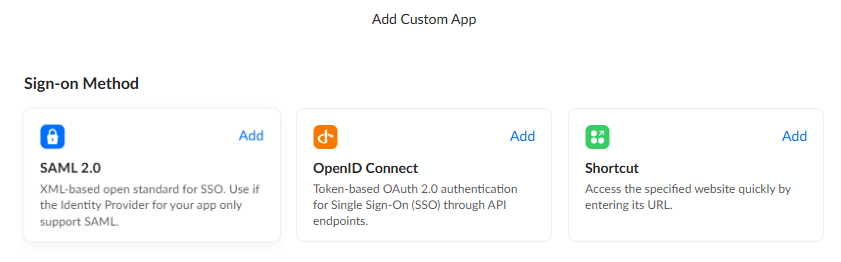
 3. Select **Add** on the **SAML 2.0** option for Sign-on Method.
 ### Step 2: Configure the SAML app settings
You will now be on the **Add SAML 2.0 App** screen. Fill in the fields as follows, replacing `` with the fully-qualified domain name of your Omni instance:
| Option | Value | Description |
| --------------------------- | --------------------------------------- | -------------------------------------------------------------- |
| Name | Omni | A descriptive name for the app. |
| Icon | Your choice | Upload an icon of your choosing. |
| Single Sign-On URL | `https:///saml/acs` | The URL where UIIE sends SAML responses after authentication. |
| Audience URI (SP Entity ID) | `https:///saml/metadata` | The URL Omni uses to identify itself to the identity provider. |
| Default Relay State | *(leave blank)* | Not required. |
| Name ID Format | Unspecified | `emailAddress` also works. |
| App Username | Email | Email works best; username prefixes may also work. |
| SCIM Connection | Off | Not used. |
### Step 2: Configure the SAML app settings
You will now be on the **Add SAML 2.0 App** screen. Fill in the fields as follows, replacing `` with the fully-qualified domain name of your Omni instance:
| Option | Value | Description |
| --------------------------- | --------------------------------------- | -------------------------------------------------------------- |
| Name | Omni | A descriptive name for the app. |
| Icon | Your choice | Upload an icon of your choosing. |
| Single Sign-On URL | `https:///saml/acs` | The URL where UIIE sends SAML responses after authentication. |
| Audience URI (SP Entity ID) | `https:///saml/metadata` | The URL Omni uses to identify itself to the identity provider. |
| Default Relay State | *(leave blank)* | Not required. |
| Name ID Format | Unspecified | `emailAddress` also works. |
| App Username | Email | Email works best; username prefixes may also work. |
| SCIM Connection | Off | Not used. |
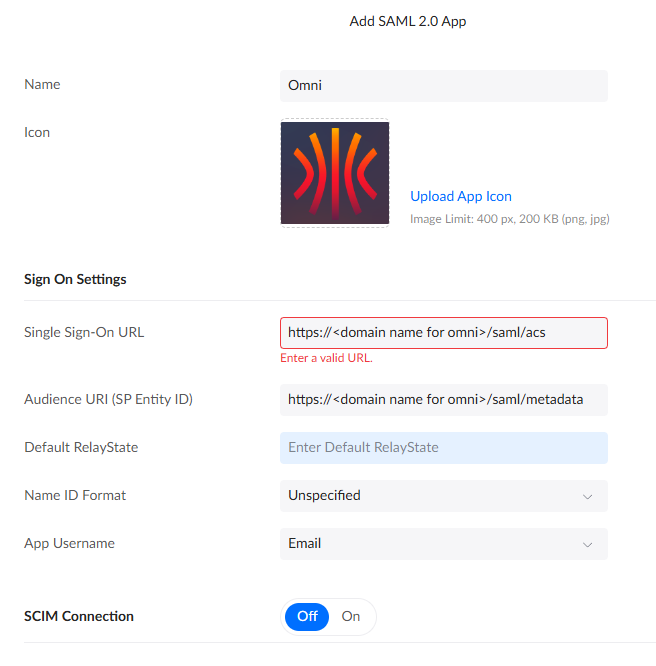 Click **Add**. On the confirmation screen that follows, click **Done** to proceed.
### Step 3: Assign users
Assign the users or groups who should be able to log in to Omni. You can do this from the app management screen you are taken to after clicking **Done**.
The first user to log in to Omni is automatically granted the `Admin` role. It is best practice to assign only your primary admin first, have them log in to Omni, and then return here to assign any additional users.
### Step 4: Configure attribute statements
Attribute statements tell UIIE which user attributes to pass to Omni in the SAML assertion. You need to add mappings for email, first name, and last name.
1. Click the **Settings** tab at the top of the screen.
Click **Add**. On the confirmation screen that follows, click **Done** to proceed.
### Step 3: Assign users
Assign the users or groups who should be able to log in to Omni. You can do this from the app management screen you are taken to after clicking **Done**.
The first user to log in to Omni is automatically granted the `Admin` role. It is best practice to assign only your primary admin first, have them log in to Omni, and then return here to assign any additional users.
### Step 4: Configure attribute statements
Attribute statements tell UIIE which user attributes to pass to Omni in the SAML assertion. You need to add mappings for email, first name, and last name.
1. Click the **Settings** tab at the top of the screen.
 2. Scroll to the bottom of the Settings page and expand the **Sign On** section by clicking **Show More**.
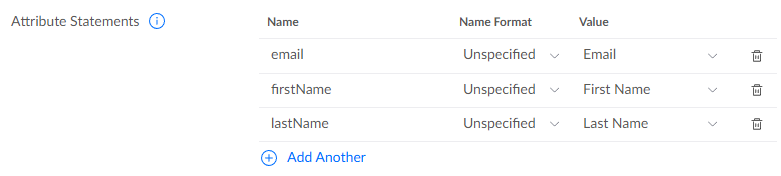
 3. In the **Attribute Statements** block, add the following mappings. Use the **Add Another** button to add each row:
 | Name | Name Format | Value | Description |
| ----------- | ----------- | ---------- | ------------------------- |
| `email` | Unspecified | Email | The user's email address. |
| `firstName` | Unspecified | First Name | The user's first name. |
| `lastName` | Unspecified | Last Name | The user's last name. |
### Step 5: Download the IDP metadata file
The IDP metadata file contains the information Omni needs to trust and communicate with UIIE. You will need to copy this file to the host that will run the Omni container.
1. Further up the **Sign On** page, locate the **View Setup Instructions** link or the **Identity Provider metadata** link.
| Name | Name Format | Value | Description |
| ----------- | ----------- | ---------- | ------------------------- |
| `email` | Unspecified | Email | The user's email address. |
| `firstName` | Unspecified | First Name | The user's first name. |
| `lastName` | Unspecified | Last Name | The user's last name. |
### Step 5: Download the IDP metadata file
The IDP metadata file contains the information Omni needs to trust and communicate with UIIE. You will need to copy this file to the host that will run the Omni container.
1. Further up the **Sign On** page, locate the **View Setup Instructions** link or the **Identity Provider metadata** link.
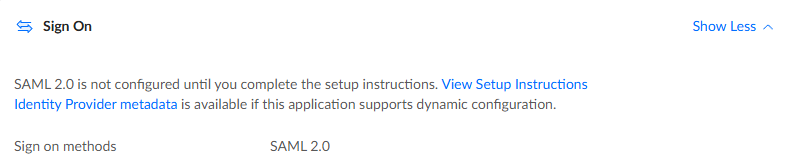 2. Download the IDP metadata file as an XML file and copy it to your container host. The remaining steps in this guide assume the file is saved at `~/uiieIDPmetadata.xml`.
This completes the configuration required in UIIE.
## Configure Omni for SAML with UIIE
To configure Omni to use UIIE as its SAML provider, pass the following flags when launching the Omni container with Docker. The Docker flag mounts the IDP metadata file into the container, and the Omni flags enable SAML and point Omni to the metadata file.
| Scope | Flag | Description |
| ------ | -------------------------------------------------- | --------------------------------------------------- |
| Docker | `-v $PWD/uiieIDPmetadata.xml:/uiieIDPmetadata.xml` | Mounts the IDP metadata file into the container. |
| Omni | `--auth-saml-enabled=true` | Enables SAML authentication. |
| Omni | `--auth-saml-metadata=/uiieIDPmetadata.xml` | The path to the IDP metadata file in the container. |
For example:
```bash theme={null}
docker run \
...
-v $PWD/uiieIDPmetadata.xml:/uiieIDPmetadata.xml \
...
ghcr.io/siderolabs/omni:latest \
--auth-saml-enabled=true \
--auth-saml-metadata=/uiieIDPmetadata.xml
```
Alternatively, you can configure these options using a configuration file instead of CLI flags. See [SAML](../../reference/omni-configuration#saml) in the Omni Configuration Examples.
UIIE does not expose group attributes, so you will need to manually assign Omni roles to users after they log in for the first time.
2. Download the IDP metadata file as an XML file and copy it to your container host. The remaining steps in this guide assume the file is saved at `~/uiieIDPmetadata.xml`.
This completes the configuration required in UIIE.
## Configure Omni for SAML with UIIE
To configure Omni to use UIIE as its SAML provider, pass the following flags when launching the Omni container with Docker. The Docker flag mounts the IDP metadata file into the container, and the Omni flags enable SAML and point Omni to the metadata file.
| Scope | Flag | Description |
| ------ | -------------------------------------------------- | --------------------------------------------------- |
| Docker | `-v $PWD/uiieIDPmetadata.xml:/uiieIDPmetadata.xml` | Mounts the IDP metadata file into the container. |
| Omni | `--auth-saml-enabled=true` | Enables SAML authentication. |
| Omni | `--auth-saml-metadata=/uiieIDPmetadata.xml` | The path to the IDP metadata file in the container. |
For example:
```bash theme={null}
docker run \
...
-v $PWD/uiieIDPmetadata.xml:/uiieIDPmetadata.xml \
...
ghcr.io/siderolabs/omni:latest \
--auth-saml-enabled=true \
--auth-saml-metadata=/uiieIDPmetadata.xml
```
Alternatively, you can configure these options using a configuration file instead of CLI flags. See [SAML](../../reference/omni-configuration#saml) in the Omni Configuration Examples.
UIIE does not expose group attributes, so you will need to manually assign Omni roles to users after they log in for the first time.