> ## Documentation Index
> Fetch the complete documentation index at: https://docs.siderolabs.com/llms.txt
> Use this file to discover all available pages before exploring further.
# Set Initial Machine Labels
> Set machine labels at boot time and understand labels derived from platform metadata for automated grouping and selection in Omni.
export const release = 'v1.13.6';
Machine labels help you organize and manage machines in your Omni environment more effectively.
For example, you can use labels to group machines by environment (production, staging, or development) or by location (regions and zones). This makes it easier to automate workflows such as CI/CD pipelines and targeted deployments.
This guide shows how to set machine labels at boot time when generating installation media or PXE URLs. You can add labels using one of the following methods:
* Through the Omni UI
* Using the `omnictl` CLI
* Using Image Factory
## Set machine labels using the Omni UI
To set machine labels using the Omni UI:
1. Log in to your Omni dashboard.
2. Click the **Download Installation Media** button to open the **Create New Media** wizard.
3. On each page of the **Create New Media** wizard, select the appropriate options for your setup, then click **Next** to continue.
The **Create New Media** wizard is identical to the [Image Factory](https://factory.talos.dev/) and it is split across multiple pages. Each page presents a different set of configuration options, such as architecture, hardware type, and Talos Linux version, that you can use to customize your Talos Omni image.
4. In the **Machine User Labels** section add the labels you want your machines to have and click **Next** to continue customizing your Talos Omni image.
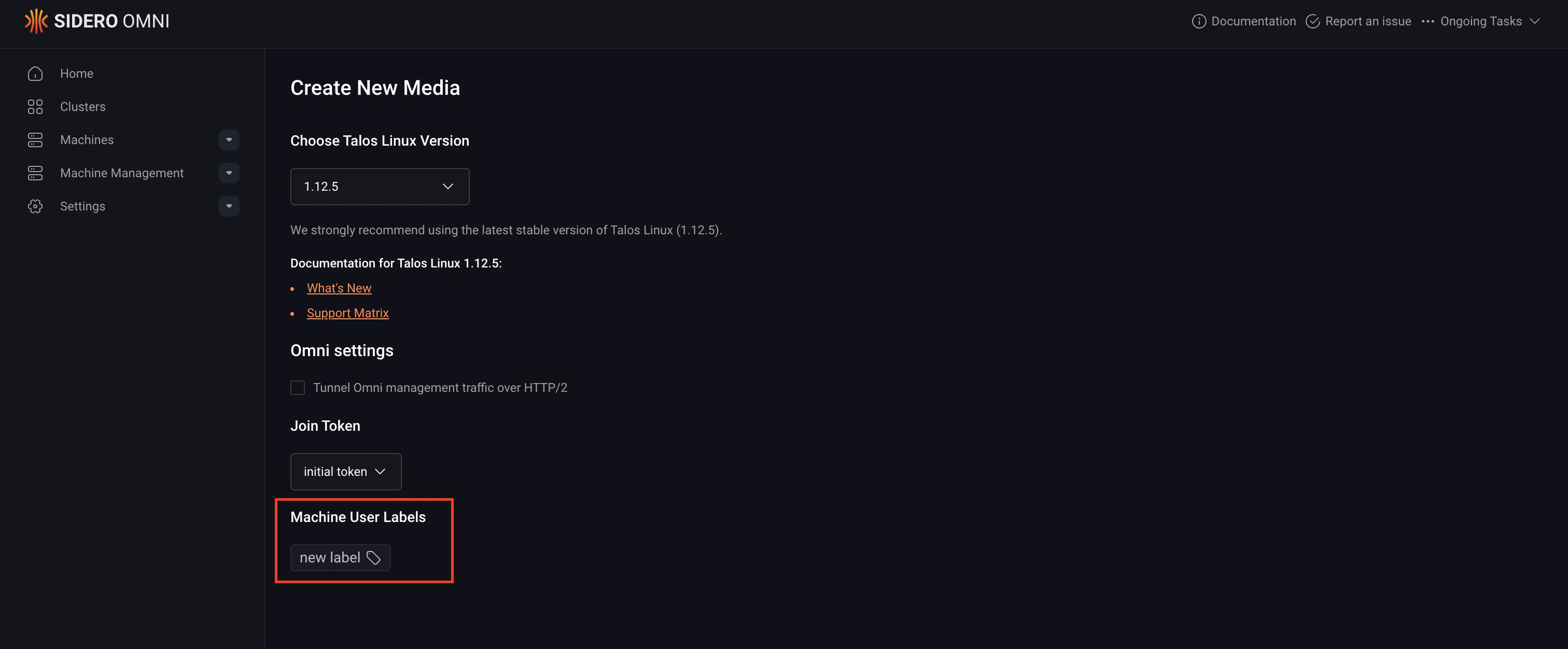 5. Select the appropriate boot option for your machine on the **Schematic Ready** page to download the Talos Omni image.
6. Boot your machines using the downloaded image to have your machines labelled.
## Set machine user labels using `omnictl`
When generating Talos installation media or a PXE boot URL with `omnictl`, you can define initial machine labels using the `--initial-labels` flag. This lets you assign key-value pairs to any machine that boots from that media.
Here is the syntax for adding machine user labels using `omnictl`:
```bash theme={null}
omnictl download \
--initial-labels =,= \
[--pxe]
```
For example, to download an amd64 ISO image with two labels (`environment=production` and `region=us-west`):
```bash theme={null}
omnictl download iso --arch amd64 \
--initial-labels environment=production,region=us-west
```
Behind the scenes, this command generates a schematic and submits it to Image Factory. The schematic includes both the required kernel arguments for connecting to Omni and the labels you specified:
```yaml theme={null}
customization:
extraKernelArgs:
- siderolink.api=grpc://YOUR_INSTANCE.siderolink.omni.siderolabs.io?grpc_tunnel=true&jointoken=YOUR_JOIN_TOKEN
- talos.events.sink=[fdae:41e4:649b:9303::1]:8090
- talos.logging.kernel=tcp://[fdae:41e4:649b:9303::1]:8092
meta:
- key: 12
value: |
machineLabels:
environment: production
region: us-west
```
Each generated schematic is assigned a unique ID, which can later be used to download installation media or construct PXE URLs.
The schematic includes the extra kernel arguments Talos needs to connect to your Omni instance on boot via SideroLink, as well as your machine labels stored in the `meta` section under key `12` — a Talos META key reserved by Omni for initial machine labels.
Initial labels work across most installation methods, including ISOs and PXE boot URLs.
**For example:**
```bash theme={null}
omnictl download iso --initial-labels environment=production,region=us-west --pxe
```
This command outputs a PXE boot URL and exits.
## Set machine user labels using Image Factory
Instead of using `omnictl`, you can generate labeled boot media or PXE URLs by sending requests directly to the Image Factory API. This is useful when you need more control over schematic generation or want to integrate with your own tooling.
### Step 1: Get your Omni kernel arguments
You need the kernel arguments for your Omni instance.
Retrieve them using **either** one of these methods:
1. Click **Copy Kernel Parameters** on your Omni overview page
2. Run `omnictl get connectionparams -oyaml` and read the values under `.spec.args`
These kernel arguments are the same for all machines you boot from a given schematic, so this is a one-time lookup.
### Step 2: Submit a schematic to Image Factory
Split the kernel arguments by whitespace and include them in a `curl` POST request to the Image Factory:
```bash theme={null}
curl -X POST https://factory.talos.dev/schematics \
-H "Content-Type: application/yaml" \
-d '
customization:
extraKernelArgs:
- siderolink.api=grpc://YOUR_INSTANCE.siderolink.omni.siderolabs.io?grpc_tunnel=true&jointoken=YOUR_JOIN_TOKEN
- talos.events.sink=[fdae:41e4:649b:9303::1]:8090
- talos.logging.kernel=tcp://[fdae:41e4:649b:9303::1]:8092
meta:
- key: 12
value: |
machineLabels:
environment: production
region: us-west
'
```
The response will contain a schematic ID:
```json theme={null}
{"id":"d2f4229b6157ba7e1dba8c3b4de42263e4baa35111e960b6a18841332d0f2035"}
```
This schematic ID will be identical to the one generated when using `omnictl` with the same labels.
### Step 3: Download the installation media
Use the schematic ID to download your installation media:
{`
curl -O https://factory.talos.dev/image/d2f4229b6157ba7e1dba8c3b4de42263e4baa35111e960b6a18841332d0f2035/${release}/metal-amd64.iso
`}
For additional options, see the [Image Factory reference](https://github.com/siderolabs/image-factory/blob/main/README.md).
The standalone [Image Factory web UI](https://factory.talos.dev) does not currently support specifying META values, so initial machine labels cannot be set there.
However, the Image Factory UI built into Omni **does** support initial machine labels.
## Set machine user labels using platform metadata
Omni can automatically create machine user labels from the platform metadata tags that the underlying platform exposes to Talos Linux. For example, an EC2 instance's tags are exposed by Talos as platform metadata tags, and Omni surfaces them as machine labels when the machine joins. This works for any platform that exposes tags through Talos `PlatformMetadata`, not just AWS EC2.
You can inspect the platform metadata tags Talos sees on a machine with:
```bash theme={null}
omnictl get machinestatus -oyaml | yq '.spec.platformmetadata.tags'
```
Machine user labels based on platform metadata are populated **once**, when the machine first joins Omni. After the labels are created successfully, Omni records that the initialization has happened and does not reconcile these labels ever again for that machine. As a result:
* Rebooting the machine does **not** recreate the labels.
* Changing the platform tags after the machine has joined (for example, editing the instance tags in EC2) is **not** reflected as updated labels in Omni.
Labels created from platform metadata behave like any other user label. You can edit or remove them after they are created, and your changes won't get overwritten. If a platform metadata tag has the same key as a label you set yourself, the pre-existing label takes precedence.
## Verifying labels
After a machine registers with Omni, you can verify its labels using the Omni UI or omnictl. This applies both to user labels set at boot (from labeled media or a PXE URL) and to user labels derived from platform metadata. They appear alongside one another.
To check labels with omnictl, run either of the following commands, replacing `` with your machine's ID:
```bash theme={null}
omnictl get machinelabels -oyaml
```
**or**
```bash theme={null}
omnictl get machinestatus -oyaml
```
These commands will display information about the labels on the machine.
5. Select the appropriate boot option for your machine on the **Schematic Ready** page to download the Talos Omni image.
6. Boot your machines using the downloaded image to have your machines labelled.
## Set machine user labels using `omnictl`
When generating Talos installation media or a PXE boot URL with `omnictl`, you can define initial machine labels using the `--initial-labels` flag. This lets you assign key-value pairs to any machine that boots from that media.
Here is the syntax for adding machine user labels using `omnictl`:
```bash theme={null}
omnictl download \
--initial-labels =,= \
[--pxe]
```
For example, to download an amd64 ISO image with two labels (`environment=production` and `region=us-west`):
```bash theme={null}
omnictl download iso --arch amd64 \
--initial-labels environment=production,region=us-west
```
Behind the scenes, this command generates a schematic and submits it to Image Factory. The schematic includes both the required kernel arguments for connecting to Omni and the labels you specified:
```yaml theme={null}
customization:
extraKernelArgs:
- siderolink.api=grpc://YOUR_INSTANCE.siderolink.omni.siderolabs.io?grpc_tunnel=true&jointoken=YOUR_JOIN_TOKEN
- talos.events.sink=[fdae:41e4:649b:9303::1]:8090
- talos.logging.kernel=tcp://[fdae:41e4:649b:9303::1]:8092
meta:
- key: 12
value: |
machineLabels:
environment: production
region: us-west
```
Each generated schematic is assigned a unique ID, which can later be used to download installation media or construct PXE URLs.
The schematic includes the extra kernel arguments Talos needs to connect to your Omni instance on boot via SideroLink, as well as your machine labels stored in the `meta` section under key `12` — a Talos META key reserved by Omni for initial machine labels.
Initial labels work across most installation methods, including ISOs and PXE boot URLs.
**For example:**
```bash theme={null}
omnictl download iso --initial-labels environment=production,region=us-west --pxe
```
This command outputs a PXE boot URL and exits.
## Set machine user labels using Image Factory
Instead of using `omnictl`, you can generate labeled boot media or PXE URLs by sending requests directly to the Image Factory API. This is useful when you need more control over schematic generation or want to integrate with your own tooling.
### Step 1: Get your Omni kernel arguments
You need the kernel arguments for your Omni instance.
Retrieve them using **either** one of these methods:
1. Click **Copy Kernel Parameters** on your Omni overview page
2. Run `omnictl get connectionparams -oyaml` and read the values under `.spec.args`
These kernel arguments are the same for all machines you boot from a given schematic, so this is a one-time lookup.
### Step 2: Submit a schematic to Image Factory
Split the kernel arguments by whitespace and include them in a `curl` POST request to the Image Factory:
```bash theme={null}
curl -X POST https://factory.talos.dev/schematics \
-H "Content-Type: application/yaml" \
-d '
customization:
extraKernelArgs:
- siderolink.api=grpc://YOUR_INSTANCE.siderolink.omni.siderolabs.io?grpc_tunnel=true&jointoken=YOUR_JOIN_TOKEN
- talos.events.sink=[fdae:41e4:649b:9303::1]:8090
- talos.logging.kernel=tcp://[fdae:41e4:649b:9303::1]:8092
meta:
- key: 12
value: |
machineLabels:
environment: production
region: us-west
'
```
The response will contain a schematic ID:
```json theme={null}
{"id":"d2f4229b6157ba7e1dba8c3b4de42263e4baa35111e960b6a18841332d0f2035"}
```
This schematic ID will be identical to the one generated when using `omnictl` with the same labels.
### Step 3: Download the installation media
Use the schematic ID to download your installation media:
{`
curl -O https://factory.talos.dev/image/d2f4229b6157ba7e1dba8c3b4de42263e4baa35111e960b6a18841332d0f2035/${release}/metal-amd64.iso
`}
For additional options, see the [Image Factory reference](https://github.com/siderolabs/image-factory/blob/main/README.md).
The standalone [Image Factory web UI](https://factory.talos.dev) does not currently support specifying META values, so initial machine labels cannot be set there.
However, the Image Factory UI built into Omni **does** support initial machine labels.
## Set machine user labels using platform metadata
Omni can automatically create machine user labels from the platform metadata tags that the underlying platform exposes to Talos Linux. For example, an EC2 instance's tags are exposed by Talos as platform metadata tags, and Omni surfaces them as machine labels when the machine joins. This works for any platform that exposes tags through Talos `PlatformMetadata`, not just AWS EC2.
You can inspect the platform metadata tags Talos sees on a machine with:
```bash theme={null}
omnictl get machinestatus -oyaml | yq '.spec.platformmetadata.tags'
```
Machine user labels based on platform metadata are populated **once**, when the machine first joins Omni. After the labels are created successfully, Omni records that the initialization has happened and does not reconcile these labels ever again for that machine. As a result:
* Rebooting the machine does **not** recreate the labels.
* Changing the platform tags after the machine has joined (for example, editing the instance tags in EC2) is **not** reflected as updated labels in Omni.
Labels created from platform metadata behave like any other user label. You can edit or remove them after they are created, and your changes won't get overwritten. If a platform metadata tag has the same key as a label you set yourself, the pre-existing label takes precedence.
## Verifying labels
After a machine registers with Omni, you can verify its labels using the Omni UI or omnictl. This applies both to user labels set at boot (from labeled media or a PXE URL) and to user labels derived from platform metadata. They appear alongside one another.
To check labels with omnictl, run either of the following commands, replacing `` with your machine's ID:
```bash theme={null}
omnictl get machinelabels -oyaml
```
**or**
```bash theme={null}
omnictl get machinestatus -oyaml
```
These commands will display information about the labels on the machine.