> ## Documentation Index
> Fetch the complete documentation index at: https://docs.siderolabs.com/llms.txt
> Use this file to discover all available pages before exploring further.
# Create a Patch for Cluster Machines
> Apply configuration changes to machines within a cluster.
Omni allows you to create configuration patches and apply them to specific groups of machines within a cluster. You can target:
* All machines in a cluster
* Control plane nodes
* Worker nodes
* Individual machines
## Create and apply a configuration patch
To create and apply a configuration patch in Omni:
1. Select the **Clusters** tab in the left-hand menu.
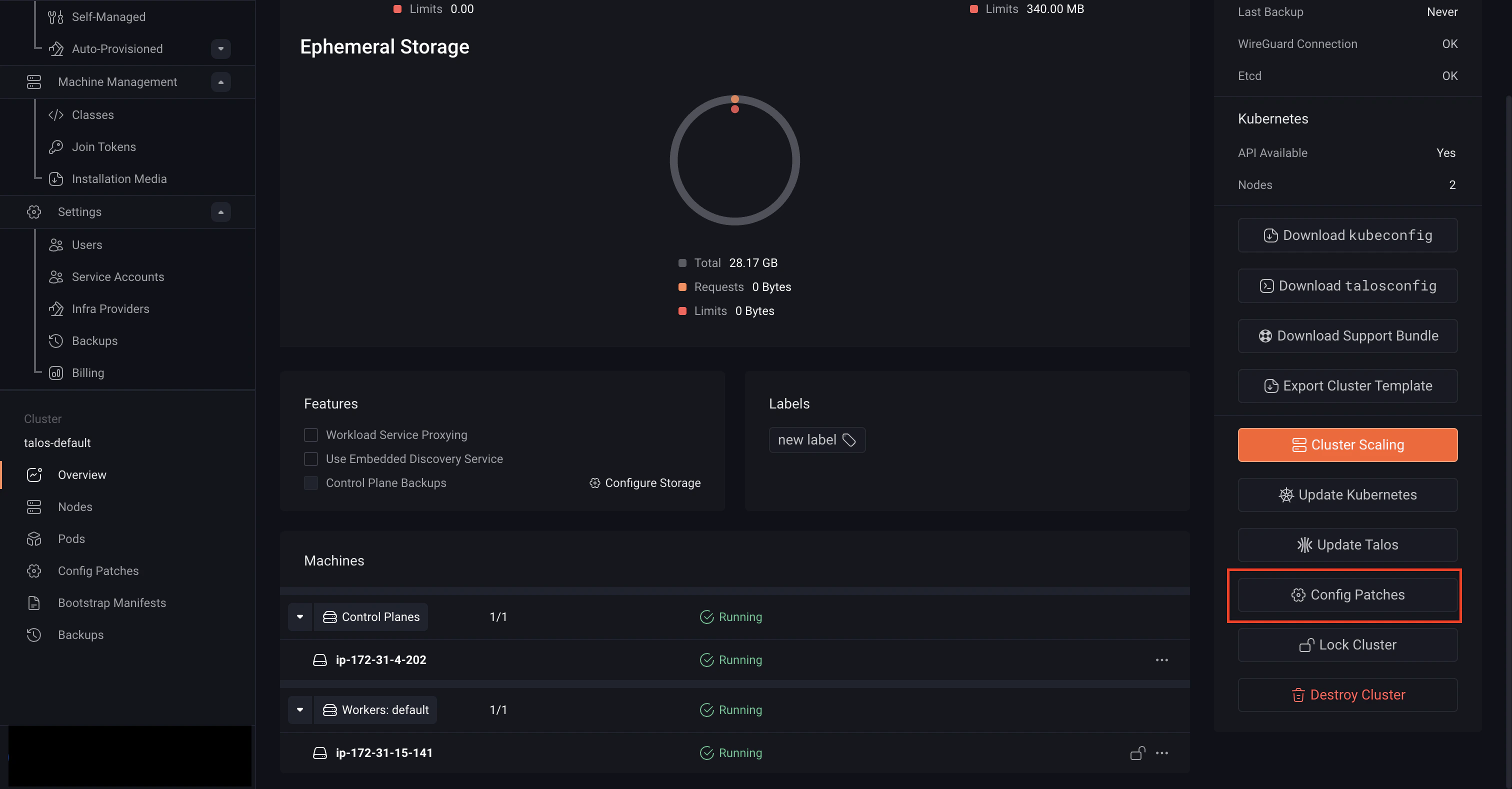
2. Open the cluster menu (**⋯**) and select **Config Patches**.
 **Alternatively**, you can:
* Open a specific cluster
* Select **Config Patches** from the right-hand panel
**Alternatively**, you can:
* Open a specific cluster
* Select **Config Patches** from the right-hand panel
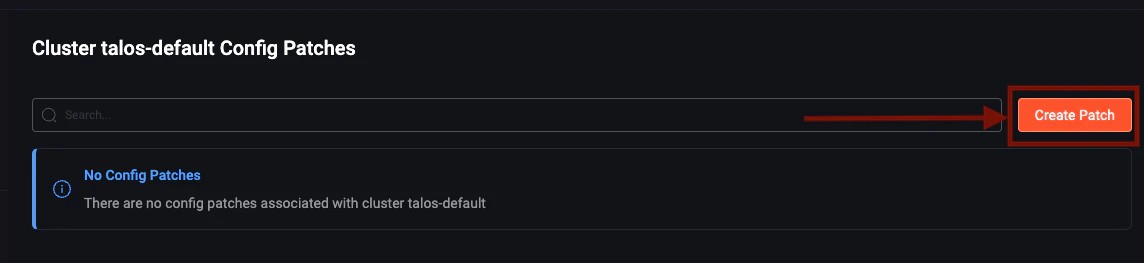
 3. Click **Create Patch**.
 4. Select a target from the **Patch Target** dropdown.
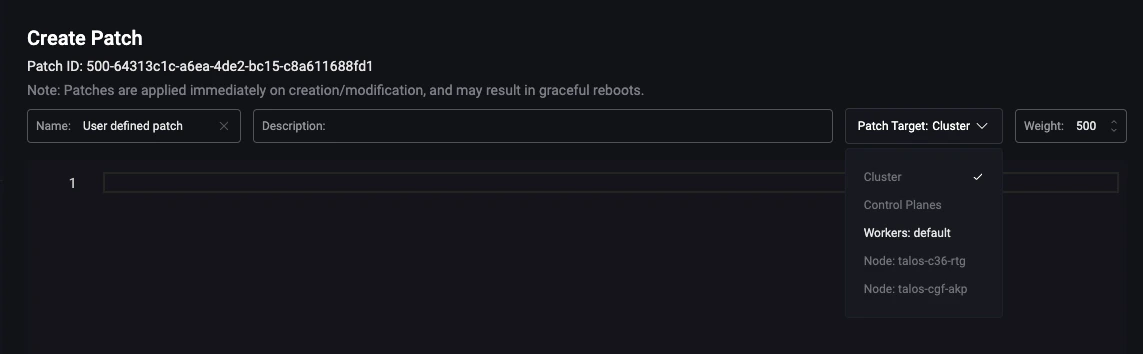 You can target the entire cluster, a group of machines (for example, all workers) or a specific machine.
5. Enter your configuration patch.
You can target the entire cluster, a group of machines (for example, all workers) or a specific machine.
5. Enter your configuration patch.
 6. Click **Save** to create the patch.
Once saved, Omni applies the configuration to the selected machines.
## Review Configuration Changes
Starting with Omni v1.6.0, you can use the configuration diff view to review both pending and applied changes.
To view these changes:
1. Select a machine in your cluster
2. Navigate to the **Config History** tab
6. Click **Save** to create the patch.
Once saved, Omni applies the configuration to the selected machines.
## Review Configuration Changes
Starting with Omni v1.6.0, you can use the configuration diff view to review both pending and applied changes.
To view these changes:
1. Select a machine in your cluster
2. Navigate to the **Config History** tab
 From here, you can inspect how configurations have changed over time and verify updates before or after they are applied.