> ## Documentation Index
> Fetch the complete documentation index at: https://docs.siderolabs.com/llms.txt
> Use this file to discover all available pages before exploring further.
# Modify Kernel Arguments
> Add or update additional Talos kernel arguments through Omni.
export const version = 'v1.13';
You can add kernel arguments when creating installation media, or modify them later on existing machines. For a full list of available kernel arguments, refer to the Kernel argument reference documentation.
Some kernel arguments are added automatically by Omni (for example, the SideroLink arguments), while others are provided by Talos.
These automatically added arguments are **not user-editable** and modifying them is **not supported**.
This document describes how to modify *additional* kernel arguments only.
## Add kernel arguments during installation media creation
You can include additional kernel arguments into your Talos Omni image using either cluster templates, the Omni CLI or the Omni UI.
You can add kernel arguments to your machines by defining them in the machine configuration within your cluster template.
Use the `kernelArgs` field in your cluster template to specify which extensions to install. For more details, see the [Cluster Templates reference documentation](../reference/cluster-templates).
The code block below defines the configuration for a cluster named `my-cluster`, including kernel arguments for both control plane and worker machines.
```yaml theme={null}
kind: Cluster
name: my-cluster
kubernetes:
version: v1.35.0
talos:
version: v1.12.2
---
kind: ControlPlane
machines:
- ec2d0bff-ea56-3ee5-cae3-d56663de6272
---
kind: Workers
machines:
- ec2fe180-8445-eea2-410f-af334b831fcb
---
kind: Machine
name: ec2d0bff-ea56-3ee5-cae3-d56663de6272
install:
disk: /dev/xvda
kernelArgs:
- talos.dashboard.disabled=1
---
kind: Machine
name: ec2fe180-8445-eea2-410f-af334b831fcb
install:
disk: /dev/xvda
kernelArgs:
- console=ttyS0,115200n8
```
After defining your cluster template, validate it using:
```bash theme={null}
omnictl cluster template validate -f cluster.yaml
```
If the validation succeeds, sync the template to apply the configuration to your Omni instance:
```bash theme={null}
omnictl cluster template sync -f cluster.yaml --verbose
```
After syncing, the control plane machine will boot with the `talos.dashboard.disabled=1` kernel argument, while the worker machine will boot with the `console=ttyS0,115200n8` kernel argument.
You can bake kernel arguments into your image in the cli by adding the `--extra-kernel-args` flag when you download the Talos Omni image.
Run this command to learn more about how to bake these kernel arguments:
```bash theme={null}
omnictl download --help
```
For example, to download a Talos Omni ISO image with the kernel argument `talos.dashboard.disabled=1`, run:
```bash theme={null}
omnictl download iso --arch amd64 --extra-kernel-args talos.dashboard.disabled=1
```
You can then boot your machines with this downloaded Talos Omni image.
To add kernel arguments to your machines:
1. Log in to your Omni dashboard.
2. Click the **Download Installation Media** button to open the **Create New Media** wizard.
3. On each page of the **Create New Media** wizard, select the appropriate options for your setup, then click **Next** to continue.
The **Create New Media** wizard is identical to the [Image Factory](https://factory.talos.dev/) and it is split across multiple pages. Each page presents a different set of configuration options, such as architecture, hardware type, and Talos Linux version, that you can use to customize your Talos Omni image.
4. Select the kernel arguments you would like to boot your machines with in the **Extra kernel command line arguments** section, click **Next** and continue with your setup.
5. Select the appropriate boot option for your machine on the **Schematic Ready** page to download the Talos Omni image.
6. Boot your machines using the downloaded image. The selected kernel arguments will already be installed.
Once you boot your machine with kernel arguments, Omni automatically creates a `KernelArgs` resource for that machine. You can view and update this resource later to modify the kernel arguments.
To retrieve the resource, run:
```bash theme={null}
omnictl get kernelargs $MACHINE_ID -o yaml
```
**Example output:**
```yaml theme={null}
metadata:
namespace: default
type: KernelArgs.omni.sidero.dev
id: $MACHINE_ID
version: 1
owner:
phase: running
created: 2025-10-29T12:58:17Z
updated: 2025-10-29T12:58:17Z
spec:
args:
- talos.dashboard.disabled=1
- talos.environment=http_proxy=http://proxy.example.com:8080
```
## Update kernel arguments on existing machines
Modifying kernel arguments on existing machines triggers an upgrade and reboots the machine.
Some conditions must be met for kernel argument updates to take effect.
If these conditions are not met, they appear in the `unmetconditions` field of the `KernelArgsStatus` resource and in the UI.
1. Go to the **Machines** tab.
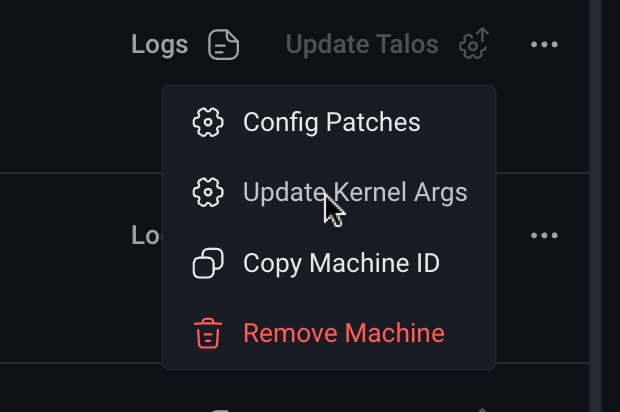
2. Click the three dots next to the machine you want to modify and select **Update kernel args**.
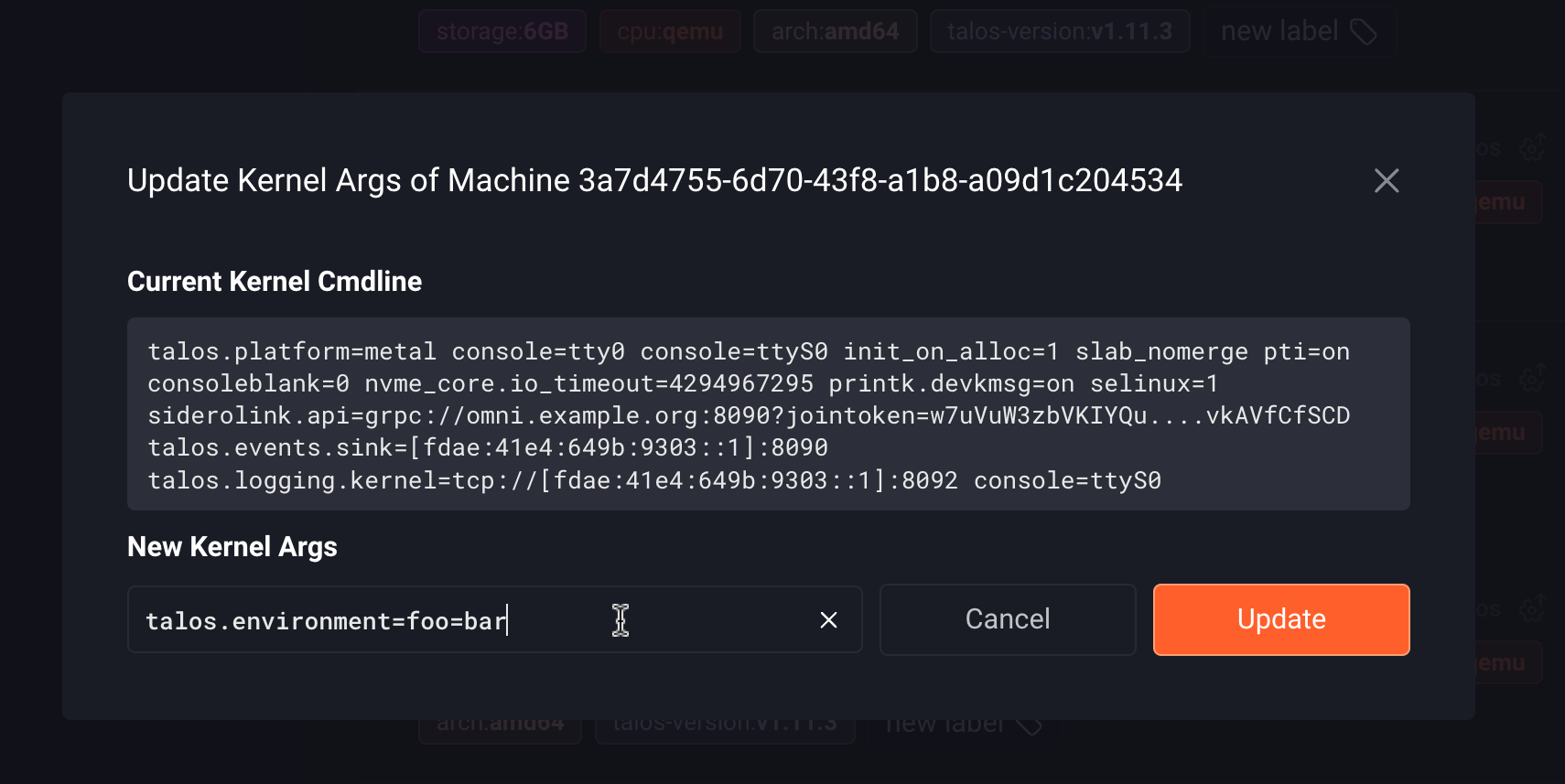
 3. In the popup, click the pencil icon to edit the current kernel arguments.
4. Click **Update**.
3. In the popup, click the pencil icon to edit the current kernel arguments.
4. Click **Update**.
 1. Save the existing arguments to a file:
```bash theme={null}
omnictl get kernelargs $MACHINE_ID -o yaml > kernel-args.yaml
```
*Alternatively, you can create a new file manually.*
2. Modify the file as needed. For example, to set `talos.environment=foo=bar`, update the `spec.args` section:
```yaml theme={null}
metadata:
namespace: default
type: KernelArgs.omni.sidero.dev
id: $MACHINE_ID
spec:
args:
- talos.environment=foo=bar
```
3. Apply the file using omnictl:
```bash theme={null}
omnictl apply -f kernel-args.yaml
```
4. Monitor the update status:
```bash theme={null}
omnictl get kernelargsstatus $MACHINE_ID -o yaml --watch
```
Example output:
```yaml theme={null}
event: updated
metadata:
namespace: default
type: KernelArgsStatuses.omni.sidero.dev
id: $MACHINE_ID
version: 5
owner: KernelArgsStatusController
phase: running
created: 2025-10-29T12:58:17Z
updated: 2025-10-29T13:28:32Z
spec:
args:
- talos.environment=foo=bar
currentargs:
- console=tty0
- console=ttyS0
unmetconditions: []
currentcmdline: talos.platform=metal console=tty0 console=ttyS0 init_on_alloc=1 slab_nomerge pti=on consoleblank=0 nvme_core.io_timeout=4294967295 printk.devkmsg=on selinux=1 siderolink.api=grpc://omni.example.org:8090?jointoken=w7uVuW3zbVKIYQ....VfCfSCD talos.events.sink=[fdae:41e4:649b:9303::1]:8090 talos.logging.kernel=tcp://[fdae:41e4:649b:9303::1]:8092
```
1. Save the existing arguments to a file:
```bash theme={null}
omnictl get kernelargs $MACHINE_ID -o yaml > kernel-args.yaml
```
*Alternatively, you can create a new file manually.*
2. Modify the file as needed. For example, to set `talos.environment=foo=bar`, update the `spec.args` section:
```yaml theme={null}
metadata:
namespace: default
type: KernelArgs.omni.sidero.dev
id: $MACHINE_ID
spec:
args:
- talos.environment=foo=bar
```
3. Apply the file using omnictl:
```bash theme={null}
omnictl apply -f kernel-args.yaml
```
4. Monitor the update status:
```bash theme={null}
omnictl get kernelargsstatus $MACHINE_ID -o yaml --watch
```
Example output:
```yaml theme={null}
event: updated
metadata:
namespace: default
type: KernelArgsStatuses.omni.sidero.dev
id: $MACHINE_ID
version: 5
owner: KernelArgsStatusController
phase: running
created: 2025-10-29T12:58:17Z
updated: 2025-10-29T13:28:32Z
spec:
args:
- talos.environment=foo=bar
currentargs:
- console=tty0
- console=ttyS0
unmetconditions: []
currentcmdline: talos.platform=metal console=tty0 console=ttyS0 init_on_alloc=1 slab_nomerge pti=on consoleblank=0 nvme_core.io_timeout=4294967295 printk.devkmsg=on selinux=1 siderolink.api=grpc://omni.example.org:8090?jointoken=w7uVuW3zbVKIYQ....VfCfSCD talos.events.sink=[fdae:41e4:649b:9303::1]:8090 talos.logging.kernel=tcp://[fdae:41e4:649b:9303::1]:8092
```