> ## Documentation Index
> Fetch the complete documentation index at: https://docs.siderolabs.com/llms.txt
> Use this file to discover all available pages before exploring further.
# Scale a Cluster Up or Down
> Add or remove control plane and worker nodes in Omni.
Scaling a cluster lets you add or remove nodes to match your workload requirements. In Omni, you can scale a cluster through the UI or by updating a cluster template. This guide covers both approaches.
When scaling control plane nodes, always maintain an odd number (1, 3, 5) to preserve etcd quorum. Removing a control plane node without maintaining quorum can make the cluster unavailable. For high availability, SideroLabs recommends running at least 3 control plane nodes.
## Scale up a cluster
Scaling up adds new nodes to an existing cluster. You can add nodes as control plane or worker nodes depending on your needs. Add a node as a **control plane** only if you need to increase fault tolerance or etcd quorum. For all other capacity increases, add nodes as **workers**.
How you scale up depends on whether your cluster template uses a machine class or static machines.
### Using a machine class
Increase the `size` value in the `Workers` or `ControlPlane` document:
```yaml theme={null}
kind: Workers
name: workers
machineClass:
name:
size: 3 # increase this number to add more machines
```
Then apply the updated template:
```bash theme={null}
omnictl cluster template sync -f .yaml
```
### Using static machines
Add the new machine UUID to the `ControlPlane` or `Workers` document:
To add a control plane node:
```yaml theme={null}
kind: ControlPlane
machines:
-
-
```
To add a worker node:
```yaml theme={null}
kind: Workers
machines:
-
-
```
Then apply the updated template:
```bash theme={null}
omnictl cluster template sync -f .yaml
```
For more information on cluster templates, see the [Cluster Template reference documentation](../../reference/cluster-templates).
1. Open **Clusters** from the left navigation and select the cluster you want to scale.
2. From the **Cluster Overview** tab, click **Cluster Scaling** in the right sidebar.
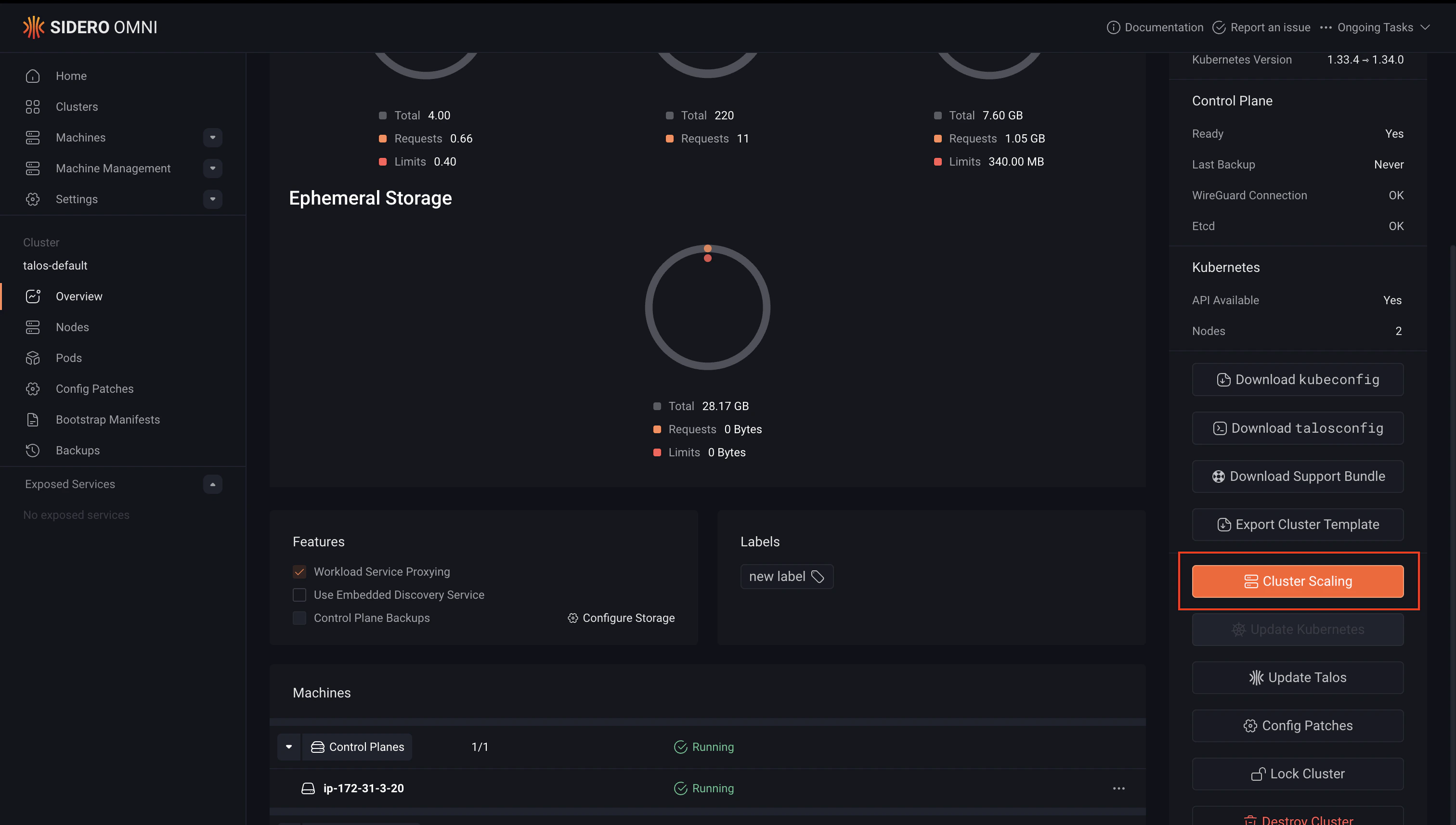 3. From the list of available machines, identify the machine or machines you want to add.
4. Click **ControlPlane** or **Worker** next to each machine to assign it a role.
5. Click **Add Machines** to apply the changes.
Once added, the new nodes will appear in the cluster and begin provisioning. You can monitor their status from the **Nodes** section in the left navigation.
## Scale down a cluster
Scaling down removes nodes from a cluster. Removing a worker node is safe and non-disruptive to the cluster control plane. Removing a control plane node reduces etcd quorum, ensure the remaining number of control plane nodes is odd and sufficient to maintain a healthy cluster before proceeding.
> **Warning:** Destroying a node removes it from the cluster and wipes its configuration. This action cannot be undone. Ensure any workloads running on the node have been drained or rescheduled before proceeding.
To remove a node from a cluster managed by a cluster template, remove the machine UUID from the relevant document in your template and sync it.
To remove a control plane node:
```yaml theme={null}
kind: ControlPlane
machines:
- # remove the UUID of the node you want to delete
```
To remove a worker node:
```yaml theme={null}
kind: Workers
machines:
- # remove the UUID of the node you want to delete
```
Apply the updated template:
```shell theme={null}
omnictl cluster template sync -f .yaml
```
For more information on cluster templates, see the [Cluster Template reference documentation](../../reference/cluster-templates).
1. Open **Clusters** from the left navigation and select the cluster you want to scale.
2. Click **Nodes** from the left navigation.
3. From the list of available machines, identify the machine or machines you want to add.
4. Click **ControlPlane** or **Worker** next to each machine to assign it a role.
5. Click **Add Machines** to apply the changes.
Once added, the new nodes will appear in the cluster and begin provisioning. You can monitor their status from the **Nodes** section in the left navigation.
## Scale down a cluster
Scaling down removes nodes from a cluster. Removing a worker node is safe and non-disruptive to the cluster control plane. Removing a control plane node reduces etcd quorum, ensure the remaining number of control plane nodes is odd and sufficient to maintain a healthy cluster before proceeding.
> **Warning:** Destroying a node removes it from the cluster and wipes its configuration. This action cannot be undone. Ensure any workloads running on the node have been drained or rescheduled before proceeding.
To remove a node from a cluster managed by a cluster template, remove the machine UUID from the relevant document in your template and sync it.
To remove a control plane node:
```yaml theme={null}
kind: ControlPlane
machines:
- # remove the UUID of the node you want to delete
```
To remove a worker node:
```yaml theme={null}
kind: Workers
machines:
- # remove the UUID of the node you want to delete
```
Apply the updated template:
```shell theme={null}
omnictl cluster template sync -f .yaml
```
For more information on cluster templates, see the [Cluster Template reference documentation](../../reference/cluster-templates).
1. Open **Clusters** from the left navigation and select the cluster you want to scale.
2. Click **Nodes** from the left navigation.
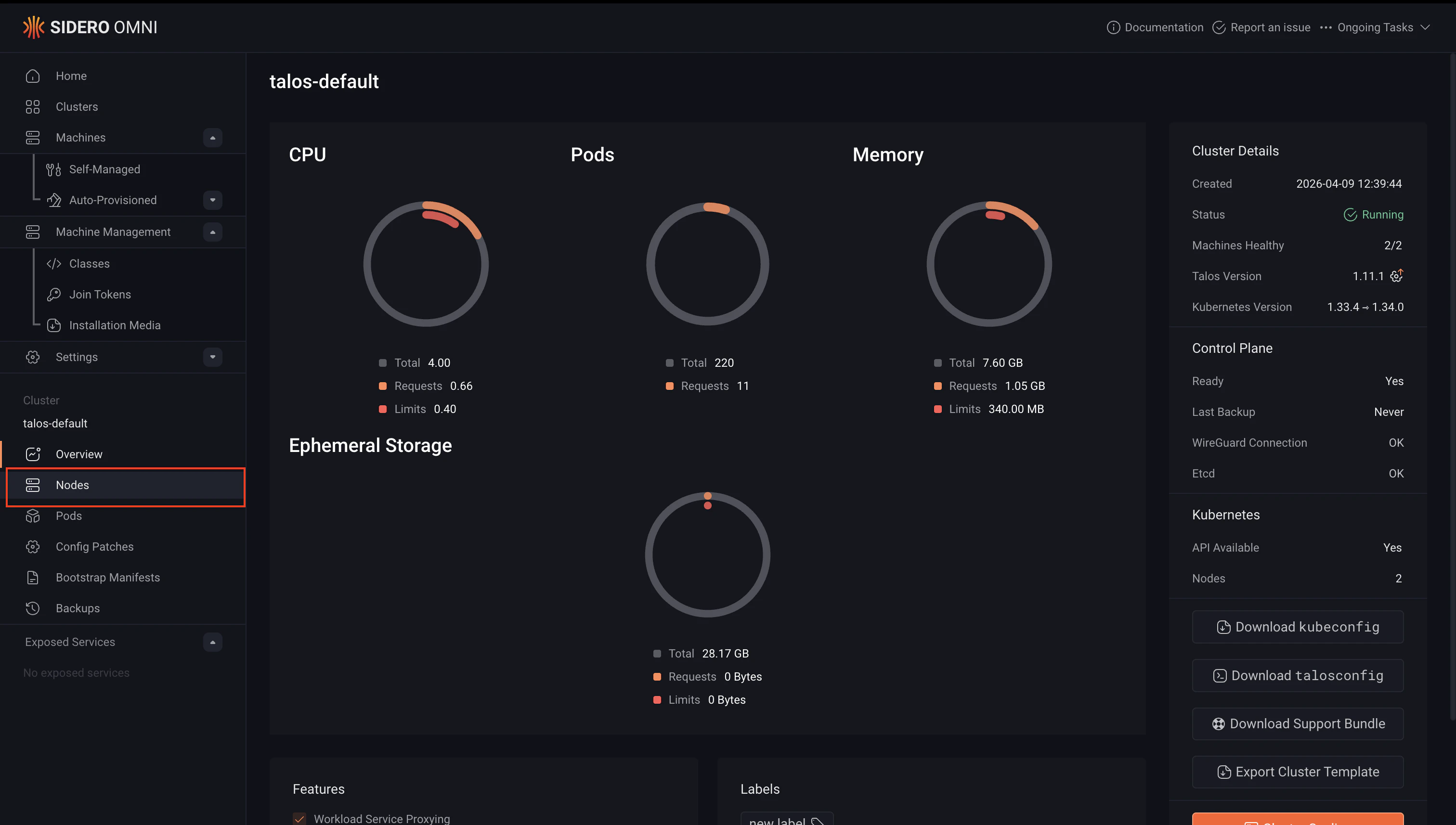 3. Find the node you want to remove, click the **...** menu to the right of the node, and select **Destroy**.
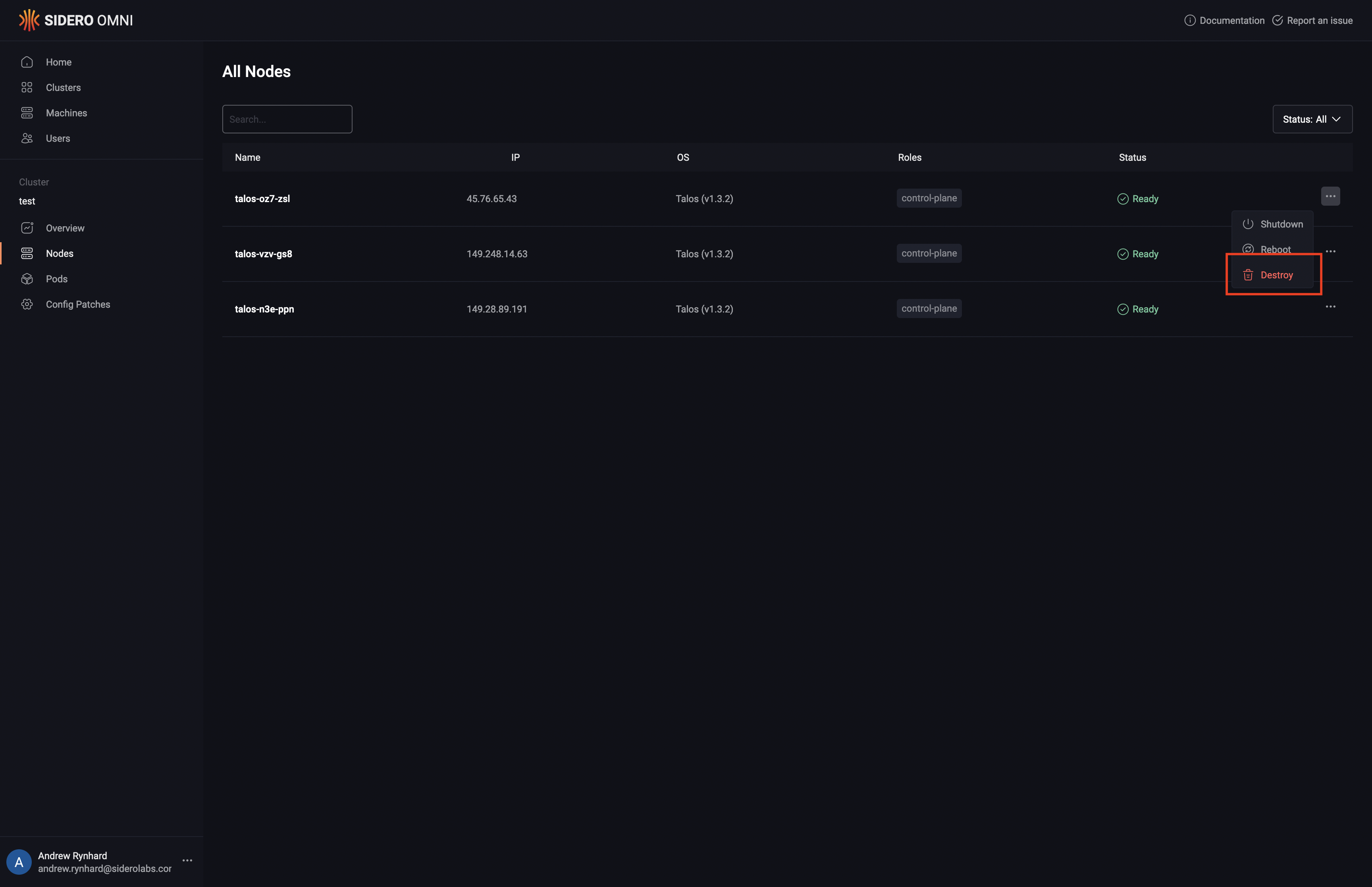 The node will be removed from the cluster and its configuration will be wiped. Monitor the remaining nodes from the **Nodes** section to confirm the cluster remains healthy after the operation.